
How to Reconcile a Bank Account in QuickBooks Online
Last updated: October 2026
Reconciling your bank account is one of the most important steps in keeping your business's financial records accurate. It helps you identify missing transactions, catch bookkeeping errors and confirm that your accounting records agree with your Bank Statement.
QuickBooks Online makes this process easier by bringing your bank transactions, accounting records and reconciliation tools into one place.
In this step-by-step guide, you'll learn how to reconcile a bank account in QuickBooks Online, from importing and reviewing bank transactions to resolving reconciliation differences and generating your final report.
Whether you're a small-business owner, beginner bookkeeper or accounting professional, I'll show you how each stage works and what to check when your reconciliation doesn't balance.
QuickBooks menus and features may vary slightly depending on your country, subscription and the version of the software you're using.
Disclosure: This post was created in partnership with Intuit and contains affiliate links. If you sign up through one of these links, I may earn a commission at no additional cost to you.
Watch the Bank Reconciliation Process from Start to Finish
Prefer to follow along with a video?
In this tutorial, I'll walk you through the complete bank reconciliation process in QuickBooks Online using a sample Checking account. You'll learn how to import and review transactions, reconcile your account and fix three common differences that can prevent it from balancing.
James demonstrates how to reconcile a bank account in QuickBooks Online, from reviewing transactions and resolving differences to completing the reconciliation and generating a report.
The QuickBooks Bank Reconciliation Process in Seven Steps
Ready to reconcile your bank account in QuickBooks Online?
Here's the complete seven-step process we'll follow:
Understand bank reconciliation: Learn what it is and why it matters.
Learn how reconciliation works: Understand how your bank and book balances are compared.
Import bank transactions: Connect your bank account or upload transactions manually.
Match or categorize transactions: Review downloaded transactions and record them correctly.
Reconcile the account: Compare transactions against your bank statement and bring the difference down to $0.00.
Resolve reconciliation differences: Identify incorrect statement details, missing transactions and timing differences.
Finish the reconciliation: Complete the process and review your Reconciliation Report.
We'll follow these steps using the same Checking account so you can see how each stage fits together.
Get 50% off QuickBooks Online for 3 months
Want to follow along and reconcile your own bank account in QuickBooks Online? Get started with QuickBooks Online and save 50% on your first 3 months.
Not sure which subscription is right for you? Check out my QuickBooks Online plan comparison before getting started.
Offer subject to eligibility and current terms. Affiliate link.
Step 1: What Is a Bank Reconciliation?
A bank reconciliation is the process of comparing the transactions recorded in your Cash Book against those appearing on your Bank Statement.
The goal is to identify and explain any differences between the two balances and make sure your accounting records are accurate and complete.
For example, imagine your Bank Statement shows an ending balance of $10,000, but your Cash Book shows $9,950.
Why is there a $50 difference?
In this example, the bank has credited $50 of interest to your account, but you haven't recorded it in your Cash Book yet.
Once you record the missing interest income, both balances will agree at $10,000.
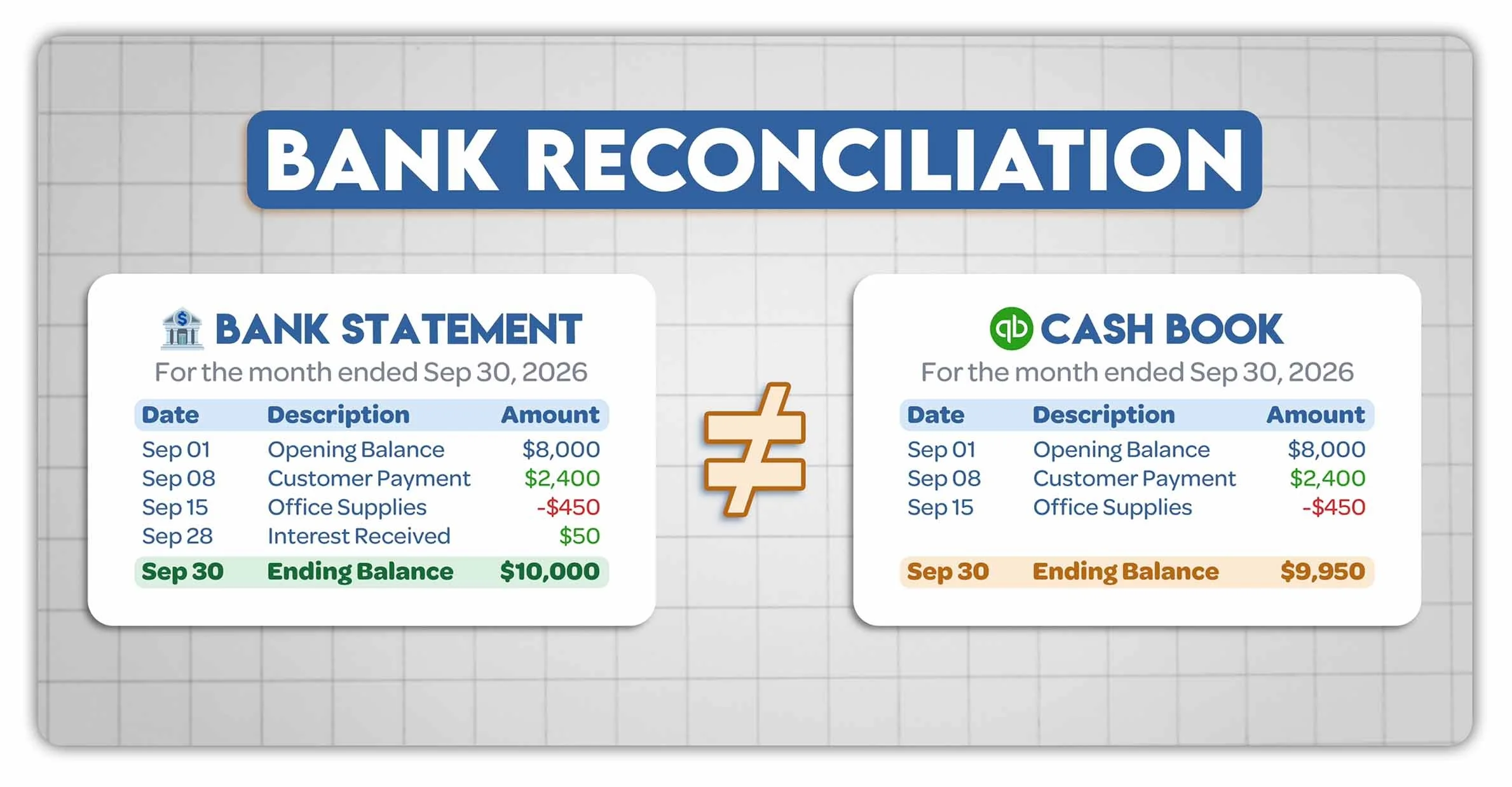
When your Bank Statement and Cash Book don't match, bank reconciliation helps you identify and explain the difference.
Why Is Bank Reconciliation Important?
Regularly reconciling your bank accounts helps you:
Detect errors: Find missing transactions, duplicate entries and incorrect amounts before they affect your financial reports.
Help prevent fraud: Identify suspicious or unauthorized transactions that may need further investigation.
Maintain accuracy: Keep your financial records up to date and ensure your Cash at Bank balance is reliable.
Most businesses should reconcile their bank accounts at least once a month, ideally as soon as their monthly bank statement becomes available.
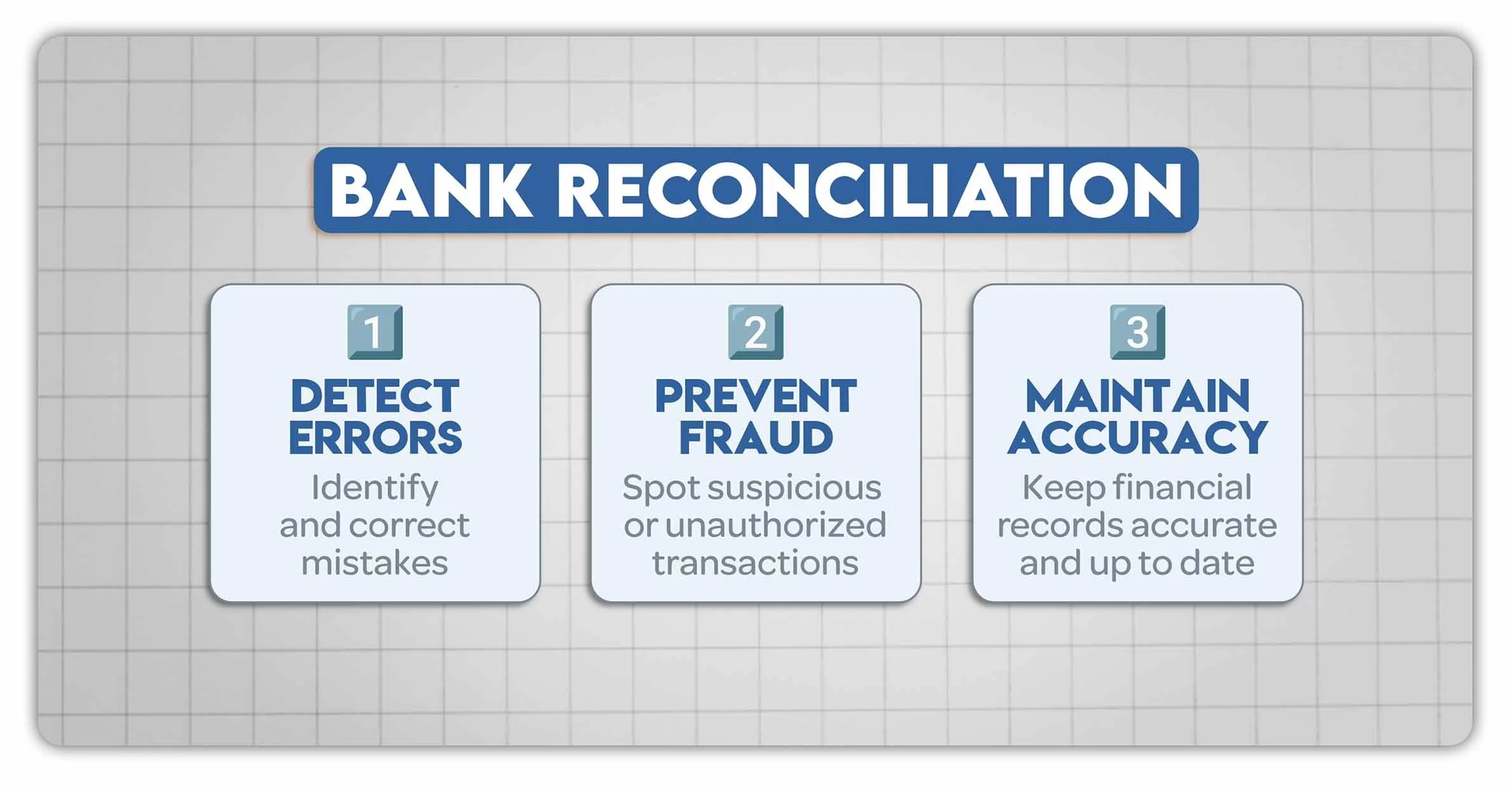
Regular bank reconciliations help businesses detect errors, identify suspicious transactions and maintain accurate financial records.
What Do You Need Before Starting?
Before reconciling your bank account in QuickBooks Online, make sure you have:
Your bank statement for the period you're reconciling.
All relevant transactions recorded in QuickBooks.
The correct bank account selected.
Details of any outstanding checks or deposits from previous periods.
For this example, we'll reconcile the Checking account using a Westbrook Bank statement ending September 30, 2026.
Quick Tip: Always reconcile against a specific bank statement, rather than simply comparing your QuickBooks balance against the amount currently showing in your online banking app. These balances may relate to different dates.
Step 2: How Does a Bank Reconciliation Work?
The basic idea behind a bank reconciliation is simple.
You're comparing two sets of records:
Bank Statement: Transactions recorded by your bank.
Cash Book: Transactions recorded by your business in QuickBooks Online.
Ideally, the transactions recorded in your Cash Book should agree with those appearing on your Bank Statement.
However, the two balances won't always match immediately.
This is because some transactions may be missing, recorded incorrectly or simply haven't cleared the bank yet.
What Are the Different Types of Reconciling Items?
There are three common types of reconciling items that can cause differences between your Bank Statement and Cash Book.
1. Errors
Errors occur when transactions have been recorded incorrectly or duplicated.
Common examples include:
An incorrect Statement Ending Balance.
Transactions recorded with the wrong amount.
Duplicate transactions.
These differences need to be investigated and corrected, either by updating the reconciliation details or fixing the underlying accounting records.
2. Missing Transactions
Sometimes a transaction appears on your Bank Statement but hasn't been recorded in your Cash Book.
Common examples include:
Bank fees.
Interest received.
Unrecorded payments.
These transactions usually need to be added to your accounting records so that your Cash Book reflects the activity on your Bank Statement.
3. Timing Differences
Timing differences occur when a transaction has already been recorded in your Cash Book but hasn't appeared on your Bank Statement yet.
Common examples include:
Outstanding Checks: Payments recorded in QuickBooks that haven't cleared the bank.
Deposits in Transit: Deposits recorded in QuickBooks that haven't reached your bank account.
Unlike errors and missing transactions, timing differences don't usually require any changes to your accounting records.
Instead, you leave these transactions uncleared and reconcile them once they appear on a later Bank Statement.
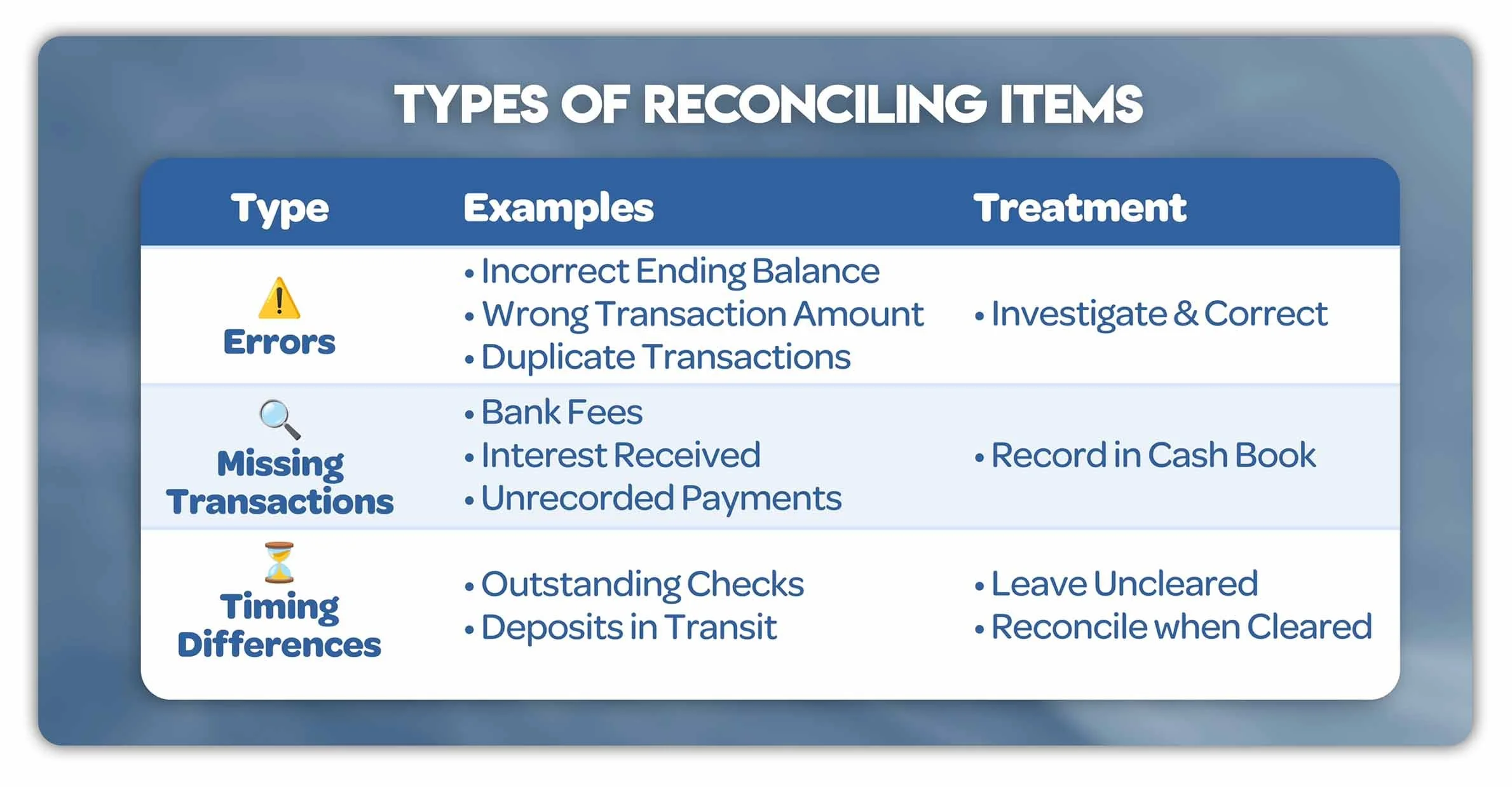
The three main types of reconciling items are errors, missing transactions and timing differences. Each requires a different treatment to complete a bank reconciliation.
How Does QuickBooks Online Help?
QuickBooks Online simplifies the reconciliation process by allowing you to compare your recorded transactions against your Bank Statement.
As you work through your statement, you mark the corresponding transactions in QuickBooks as cleared.
QuickBooks then calculates the Difference between your Statement Ending Balance and the balance of your cleared transactions.
Your goal is to bring that Difference down to $0.00.
Once you've accounted for any errors, missing transactions and timing differences, you're ready to complete the reconciliation.
Next, we'll look at how to import your bank transactions into QuickBooks Online.
Want to test your understanding? Try my Bank Reconciliation Quiz with 20+ multiple-choice practice questions.
Step 3: Import Bank Transactions into QuickBooks Online
Before starting your reconciliation, you'll need to make sure all the relevant transactions have been recorded in QuickBooks Online.
To get started, head over to Accounting > Bank Transactions.
This is where you can view and manage transactions downloaded or imported from your bank.
In our example, we've already connected three accounts: Checking, Savings and Mastercard. We'll be reconciling the Checking account.
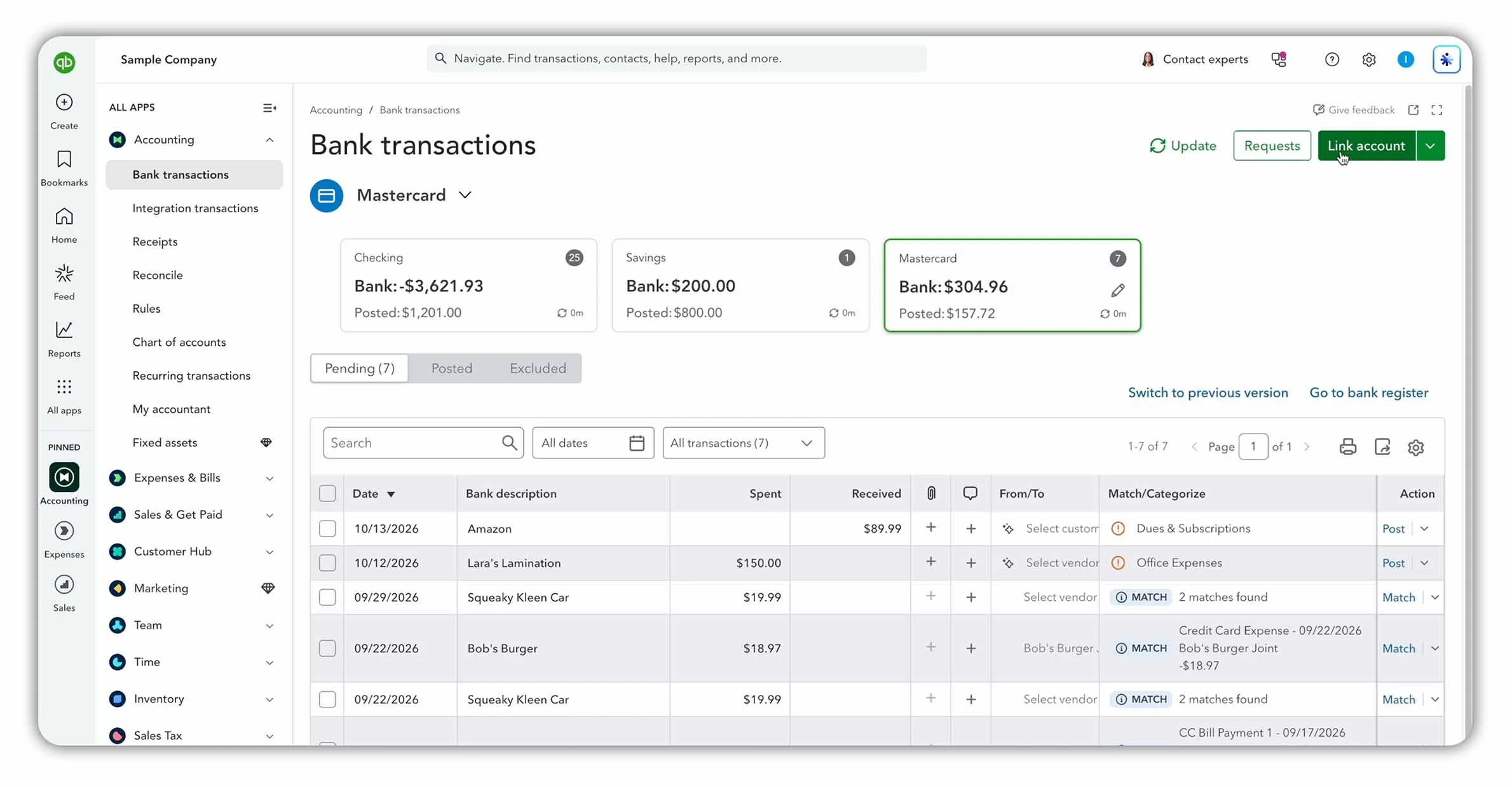
The Bank Transactions page in QuickBooks Online, showing connected accounts, downloaded transactions and the Link account button.
Understanding the Pending and Posted Tabs
Under the Pending tab, you'll find downloaded bank transactions waiting to be reviewed.
These transactions can be matched against existing records or categorized and added to your books.
Once you've matched or categorized them, they'll move to the Posted tab.
However, there's an important distinction: matching or categorizing transactions isn't the same as reconciling your bank account.
We'll cover this in more detail in Step 4.
Option 1: Connect Your Bank Account Automatically
The easiest way to import bank transactions is to connect your bank directly to QuickBooks Online.
Here's how:
Go to Accounting > Bank Transactions.
Click Link account.
Search for your bank and follow the prompts to connect securely.
Select the accounts you want to connect.
Choose how far back to download transactions, depending on your bank.
Once connected, QuickBooks will automatically download available transactions into your bank feed, ready for you to review.
This saves time and reduces the need to upload bank transactions manually.
Option 2: Upload Bank Transactions Manually
Alternatively, you can import bank transactions using a file downloaded from your online banking account.
To do this:
Go to Accounting > Bank Transactions.
Open the dropdown menu beside Link account.
Select Upload from file.
Choose the file downloaded from your bank.
Follow the prompts to select your QuickBooks account and map the transaction fields.
Review and confirm the transactions you're importing.
This method is useful if your bank doesn't support automatic connections or you need to import transactions from an earlier period.
If you're having trouble connecting your bank, check out QuickBooks' official guide to connecting bank and credit card accounts.
Quick Tip: Before importing transactions, check the date range to avoid creating duplicates. If you're reconciling your account for September 2026, make sure all relevant transactions up to September 30 are recorded in QuickBooks.
Step 4: Match or Categorize Bank Transactions
Once you've imported your bank transactions, the next step is to review them.
QuickBooks Online gives you two main options:
Match: Link a downloaded bank transaction to an existing transaction already recorded in QuickBooks.
Categorize: Assign a downloaded transaction to the appropriate account and record it in your books.
Understanding the difference is important because choosing the wrong option can lead to duplicate transactions or inaccurate financial records.
When Should You Categorize a Transaction?
You should categorize a transaction when it appears in your bank feed but hasn't yet been recorded in QuickBooks.
For example, our Checking account includes an $800 payment to A1 Rental for equipment rental.
Since this expense hasn't been recorded yet, we'll categorize it.
Here's how:
Select the downloaded transaction under the Pending tab.
Open Categorize.
Check the transaction type, payee and amount.
Select the appropriate account, such as Equipment Rental.
Add any additional details or attachments if needed.
Click Post to record the transaction.
QuickBooks may suggest a category based on the transaction details, but it's important to review the suggestion before accepting it.
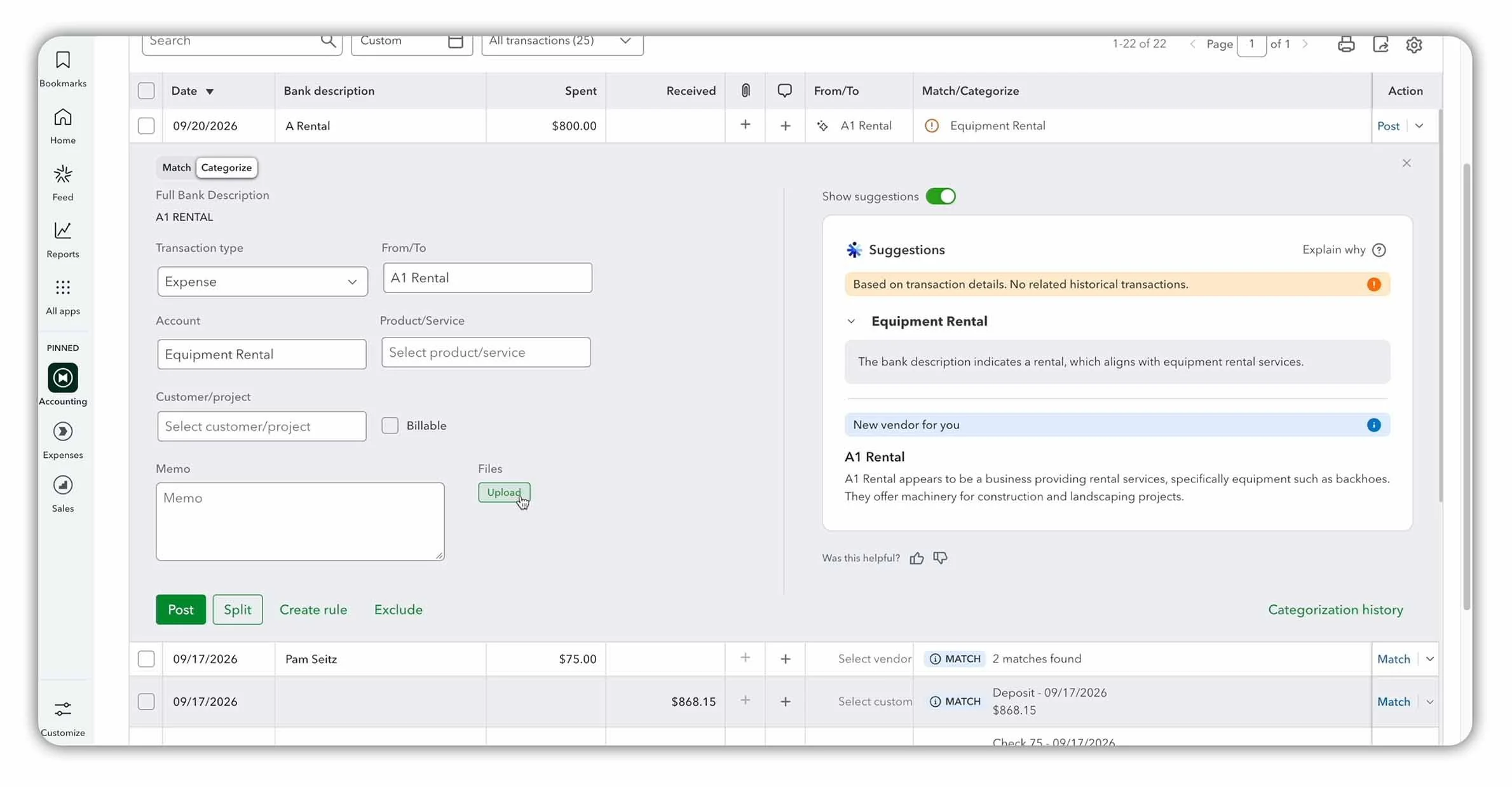
Categorizing an $800 equipment rental payment in QuickBooks Online using the Equipment Rental expense account.
When Should You Match a Transaction?
You should match a transaction when it's already been recorded in QuickBooks and later appears in your downloaded bank transactions.
Rather than recording it again, you simply link the downloaded transaction to the existing entry.
For example, our Checking account includes a $75 payment to Pam Seitz.
QuickBooks identifies two possible matches:
Expense 76: A $75 payment to Pam Seitz dated September 17, 2026.
Bill payment 3: A $75 payment to Books by Bessie dated September 15, 2026.
Although both transactions have the same amount, only one is the correct match.
To match the transaction:
Select the downloaded transaction under the Pending tab.
Open Match.
Review the suggested matches, including their dates, amounts and payees.
Select the correct existing transaction.
Click Match to confirm.
In this example, we'll select the $75 expense recorded for Pam Seitz.
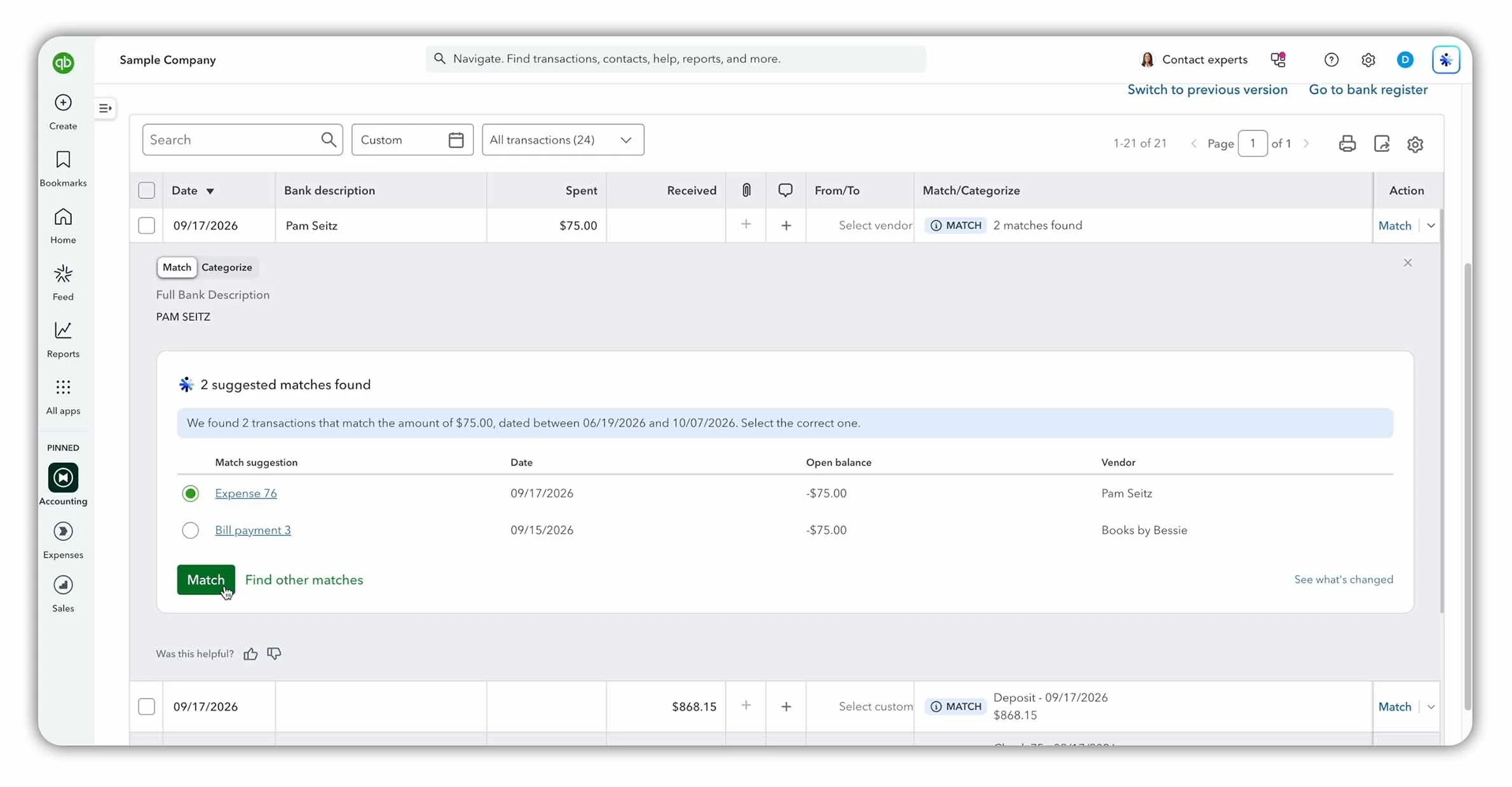
QuickBooks Online identifies two possible matches for a $75 bank transaction. Review the details carefully before selecting the correct entry.
How to Avoid Duplicate Transactions
Before categorizing a bank transaction, always check whether it's already been recorded in QuickBooks.
This is particularly important for:
Customer invoice payments.
Supplier bill payments.
Transfers between bank accounts.
Checks already recorded in QuickBooks.
Bank deposits containing multiple customer payments.
If you categorize a transaction that should have been matched, you could end up recording the same payment or receipt twice.
If you're new to recording customer payments, check out my step-by-step guide to creating and sending invoices in QuickBooks Online.
Quick Tip: Matching and categorizing transactions is not the same as reconciling your bank account. These steps help keep your accounting records up to date, while reconciliation confirms that those records agree with your Bank Statement.
Step 5: Reconcile Your Bank Account in QuickBooks Online
Now that your bank transactions have been reviewed, you're ready to start the actual reconciliation.
To begin, go to Accounting > Reconcile and select the account you want to reconcile.
In this example, we'll reconcile the Checking account.
For additional guidance, you can also refer to Intuit's official QuickBooks Online reconciliation guide.
Gather the Information from Your Bank Statement
Before entering anything into QuickBooks, take a look at your bank statement.
You'll need three key details:
Beginning Balance: The opening balance for the statement period.
Statement Ending Balance: The closing balance shown on the bank statement.
Statement Ending Date: The final date covered by the statement.
In our example, the Westbrook Bank statement shows:
Beginning Balance: $4,875.00
Statement Ending Balance: $1,276.62
Statement Ending Date: 09/30/2026
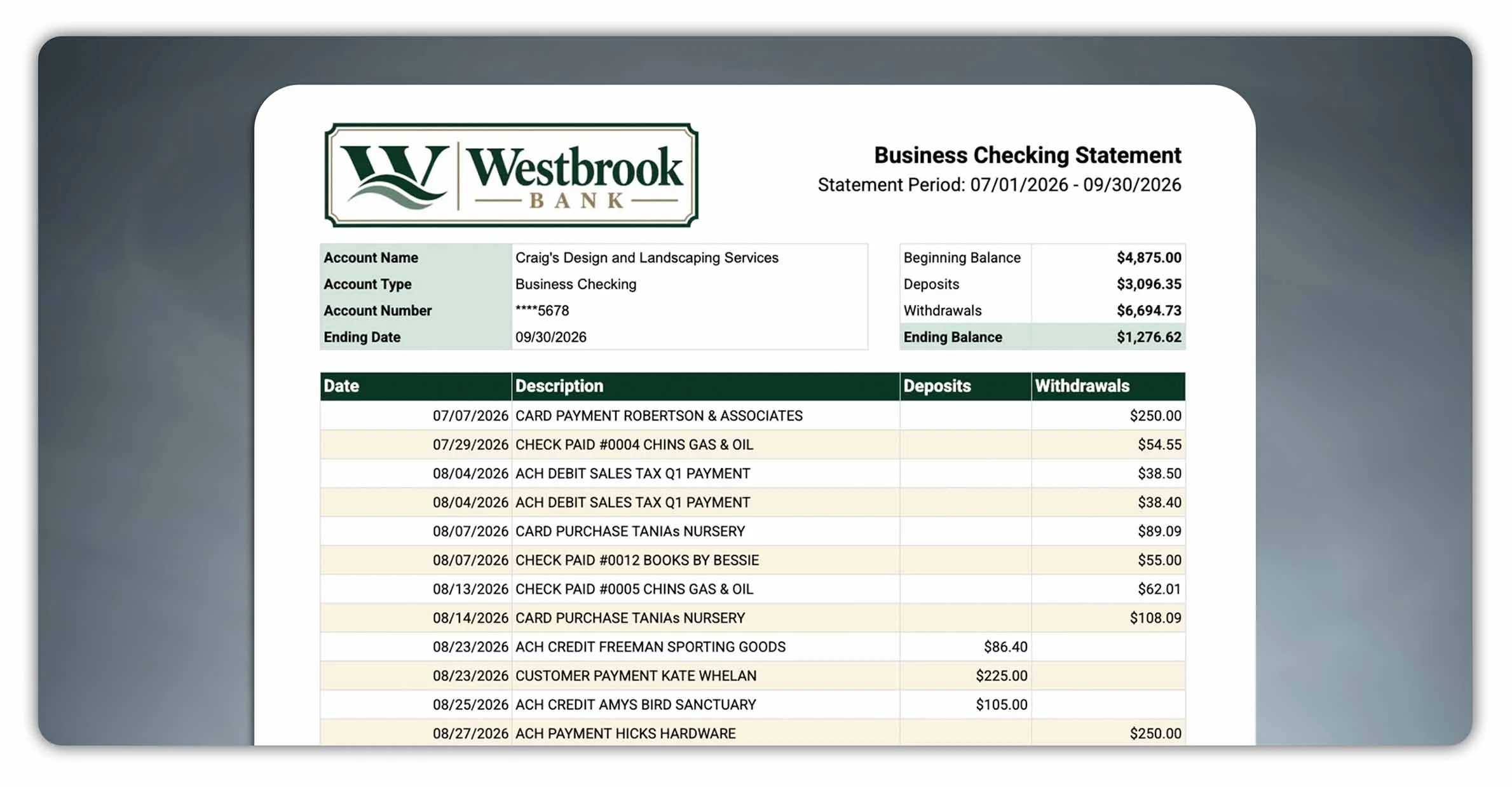
The Westbrook Bank statement provides the beginning balance, statement ending balance and statement ending date needed to start the reconciliation.
Enter the Bank Statement Details into QuickBooks
Next, enter those details into the Reconcile screen in QuickBooks Online.
QuickBooks asks for:
Account: The bank account you're reconciling.
Beginning balance
Statement ending balance
Statement ending date
For this example, we'll select Checking and enter the statement ending balance of $1,276.62 and the statement ending date of 09/30/2026.
Before continuing, check that the Beginning balance shown in QuickBooks agrees with the beginning balance from your bank statement.
If the beginning balance is incorrect, stop and investigate the difference before proceeding.
Once everything matches, click Start reconciling.
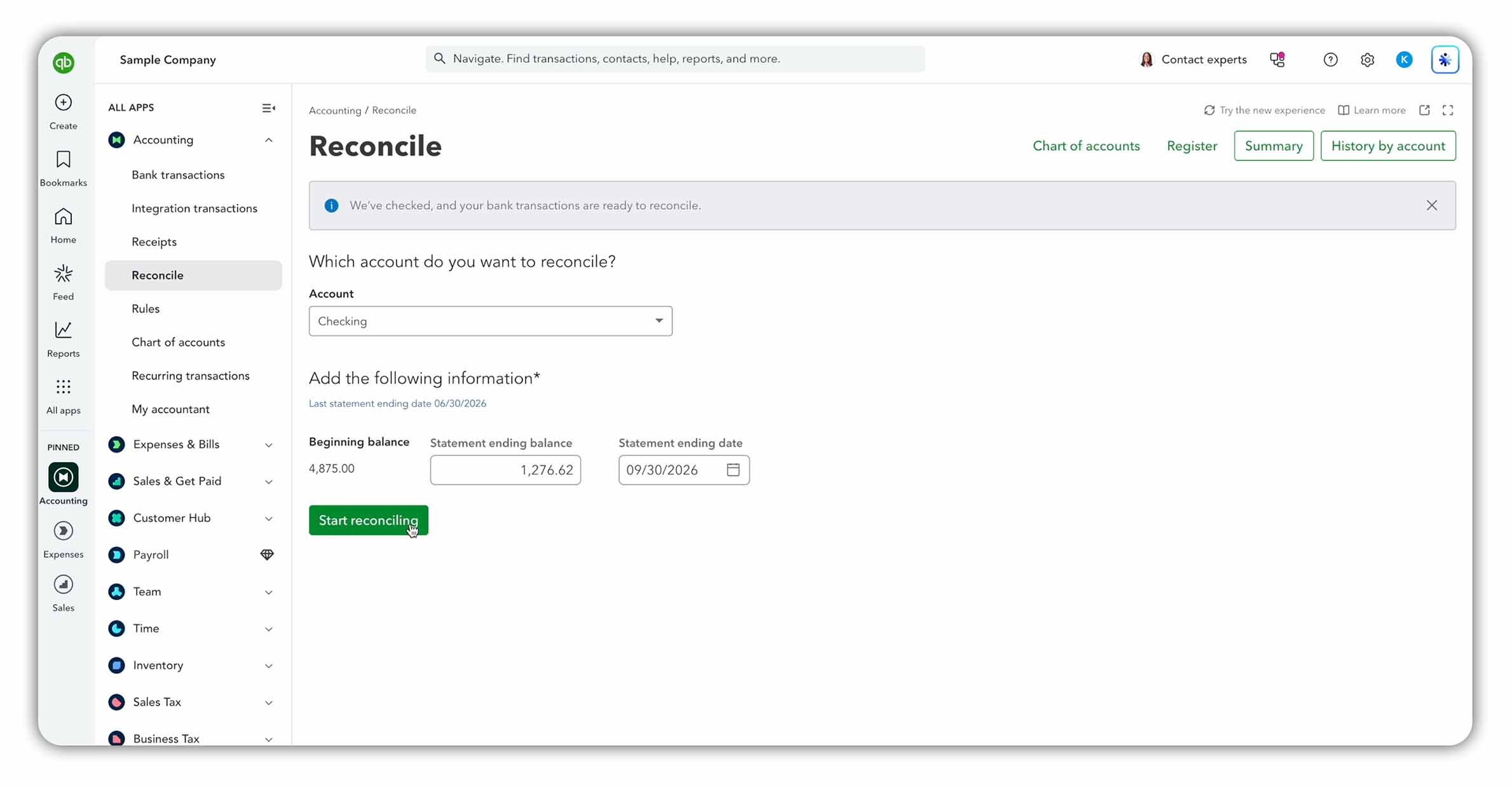
Enter the account, statement ending balance and statement ending date in QuickBooks Online before starting the reconciliation.
QuickBooks may also offer an AI-powered reconciliation option that allows you to upload your bank statement. For this example, we're using the manual method so you can clearly see how the process works.
Review the Reconciliation Screen
After selecting Start reconciling, QuickBooks displays the transactions recorded in your Checking account for review.
This is where you'll compare the transactions in QuickBooks against those shown on your bank statement.
You'll also see several important figures, including:
Statement Ending Balance: The closing balance from your bank statement.
Beginning Balance: The starting balance carried forward from the previous reconciliation.
Cleared Balance: The balance based on the transactions you've marked as cleared.
Difference: The amount still remaining to be reconciled.
Your goal is to bring the Difference down to $0.00.
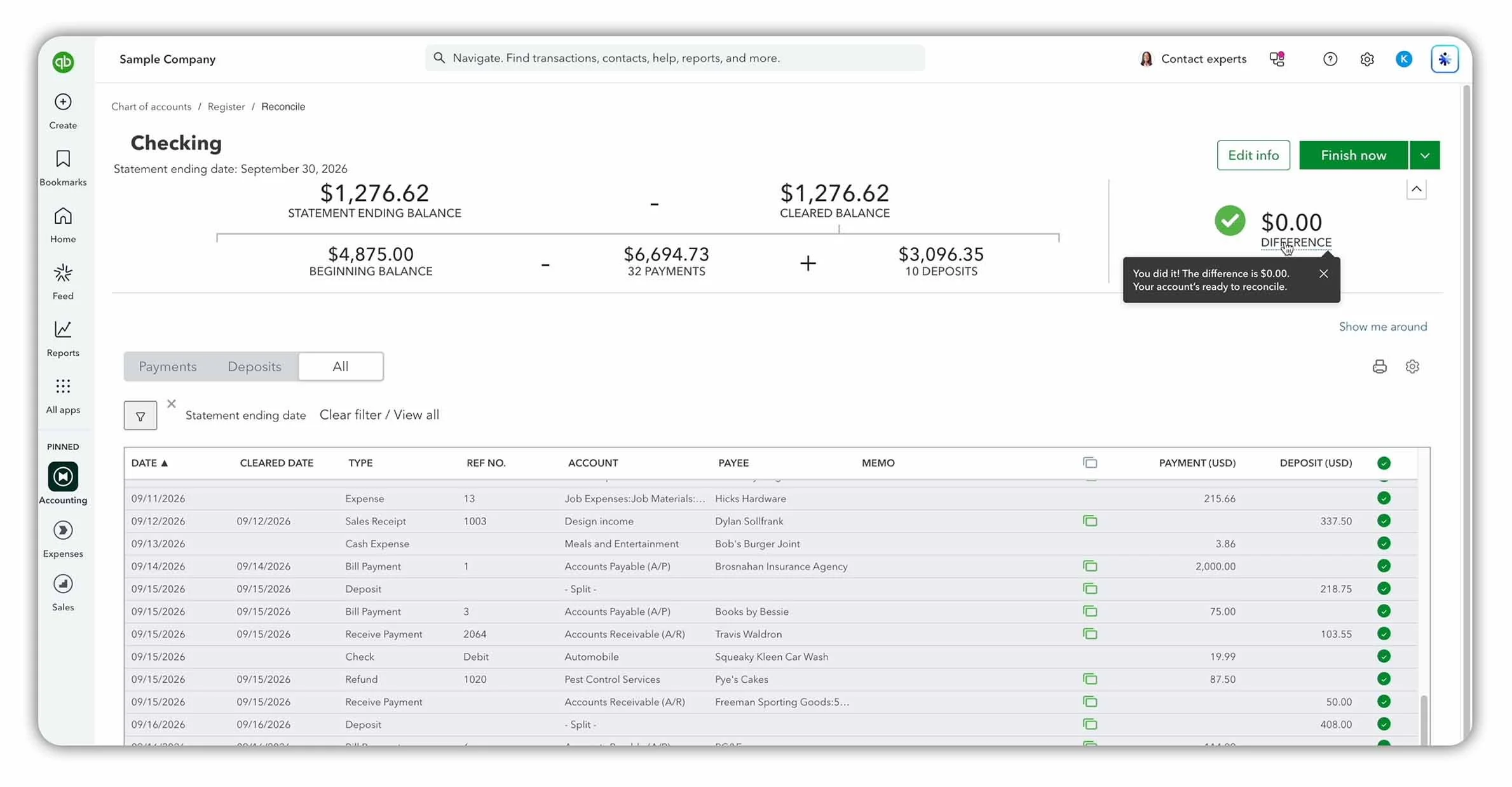
The QuickBooks reconciliation screen shows the Statement Ending Balance, Cleared Balance and current Difference. Your goal is to bring the Difference down to $0.00 before selecting Finish now.
Mark Transactions as Cleared
Work through the transactions on your bank statement one by one and find each corresponding transaction in QuickBooks.
For each item, check:
The date
The amount
The description
Whether it should be marked as cleared
As you mark transactions as cleared, QuickBooks updates the Cleared Balance and Difference automatically.
For example, our sample bank statement includes:
A $250.00 withdrawal on 07/07/2026
A $54.55 withdrawal on 07/29/2026
We'll locate those entries in QuickBooks and mark them as cleared if they appear on the bank statement.
Why Are Some Transactions Already Ticked?
You may notice that some transactions are already marked as cleared.
This can happen when transactions have already been matched against downloaded bank activity.
Even so, you should still confirm that they appear on the bank statement for the period you're reconciling.
Continue reviewing transactions until the Difference reaches $0.00, or until you've identified the items causing the reconciliation not to balance.
Quick Tip: Always use the statement ending date from your bank statement. If you accidentally reconcile beyond the statement period, your reconciliation may not balance even when the underlying transactions are correct.
Step 6: How to Fix Reconciliation Differences in QuickBooks Online
What happens if you've checked all your transactions but the Difference still won't go down to zero?
This usually means there's something that needs investigating.
Let's look at three common reconciliation differences and how to handle them.
Difference 1: Incorrect Statement Ending Balance
One of the simplest problems to fix is an incorrect Statement Ending Balance.
For example, imagine you're reconciling your Checking account for September, but you've accidentally entered the balance currently showing in your online banking account.
If transactions have cleared since September 30, that balance won't agree with your September bank statement.
How to fix it:
Open your bank statement for the period you're reconciling.
Confirm the Statement Ending Date.
Check the Statement Ending Balance.
Compare these figures against the details entered in QuickBooks.
Click Edit info if you need to make any corrections.
Make sure the Ending Balance and Ending Date both relate to the same statement period.
Difference 2: Missing Bank Fee
Another common problem is a transaction that appears on your bank statement but hasn't been recorded in QuickBooks.
For example, imagine your bank charges a $15 monthly account fee.
The fee appears on your bank statement, but there's no corresponding expense in your Cash Book.
As a result, your Cash Book balance is $15 too high.
How to fix it:
Check whether the bank fee has already been downloaded into your bank feed.
If it's there, review and categorize it under the appropriate expense account.
If it hasn't been imported, record the transaction manually.
Return to the reconciliation screen and mark the bank fee as cleared.
The accounting entry for a $15 bank fee is: Debit Bank Fees Expense $15, Credit Cash at Bank $15.
This increases Bank Fees Expense and reduces Cash at Bank by $15.
Difference 3: Outstanding Check
Sometimes a difference between your bank statement and Cash Book doesn't require any correction.
For example, imagine you've issued a $100 check to Books by Bessie.
You've already recorded the payment in QuickBooks, reducing your Cash Book balance by $100.
However, Books by Bessie hasn't deposited the check yet, so it doesn't appear on your bank statement.
This is called an Outstanding Check, and it's an example of a timing difference.
How to handle it:
Confirm the check has already been recorded in QuickBooks.
Check the amount, date and payee.
Verify that it hasn't cleared your bank account.
Leave it uncleared during the current reconciliation.
You don't need to record another payment or delete the original check.
Instead, the $100 check remains outstanding until it clears the bank, when it can be reconciled in a later period.
Importantly, a genuine outstanding check doesn't prevent your QuickBooks Difference from reaching $0.00. It simply remains uncleared and appears as an outstanding item on your Reconciliation Report.
Should You Force a Reconciliation to Balance?
No. If your Difference won't go down to zero, investigate the cause rather than entering an adjustment just to make the numbers agree.
An unexplained adjustment could hide an underlying bookkeeping error.
Instead, check your statement details, look for missing or duplicate transactions, and confirm which transactions have actually cleared the bank.
Quick Tip: Not every difference between your bank statement and Cash Book is an error. Missing transactions need recording, incorrect entries need correcting, and genuine timing differences can remain outstanding until they clear the bank.
Want a quick reference for the reconciliation process? My Bank Reconciliation Cheat Sheet summarizes the key steps, common reconciling items and their treatment on a single page.
Step 7: Finish the Bank Reconciliation
Once you've reviewed your transactions and resolved any reconciliation differences, you're ready to finish.
Before completing the reconciliation, check that:
The Statement Ending Balance matches your bank statement.
The Statement Ending Date is correct.
All transactions that cleared during the statement period have been selected.
Outstanding checks and deposits remain uncleared.
The Difference is $0.00.
When you're satisfied, click Finish now.
QuickBooks completes the reconciliation and generates a Reconciliation Report.
Review Your Reconciliation Report
The Reconciliation Report provides a record of the reconciliation you've just completed.
It includes important information such as:
The bank account and statement period.
Beginning and ending balances.
Payments and deposits cleared during the period.
Outstanding checks and deposits that haven't cleared the bank.
In our example, the report includes a $100 outstanding check to Books by Bessie.
That's expected because the payment has already been recorded in QuickBooks but hasn't yet cleared the bank.
As a result, the check remains outstanding and is included in the report's uncleared transactions.
After resolving the reconciliation differences and completing the process, QuickBooks generates a Reconciliation Report like the example below.
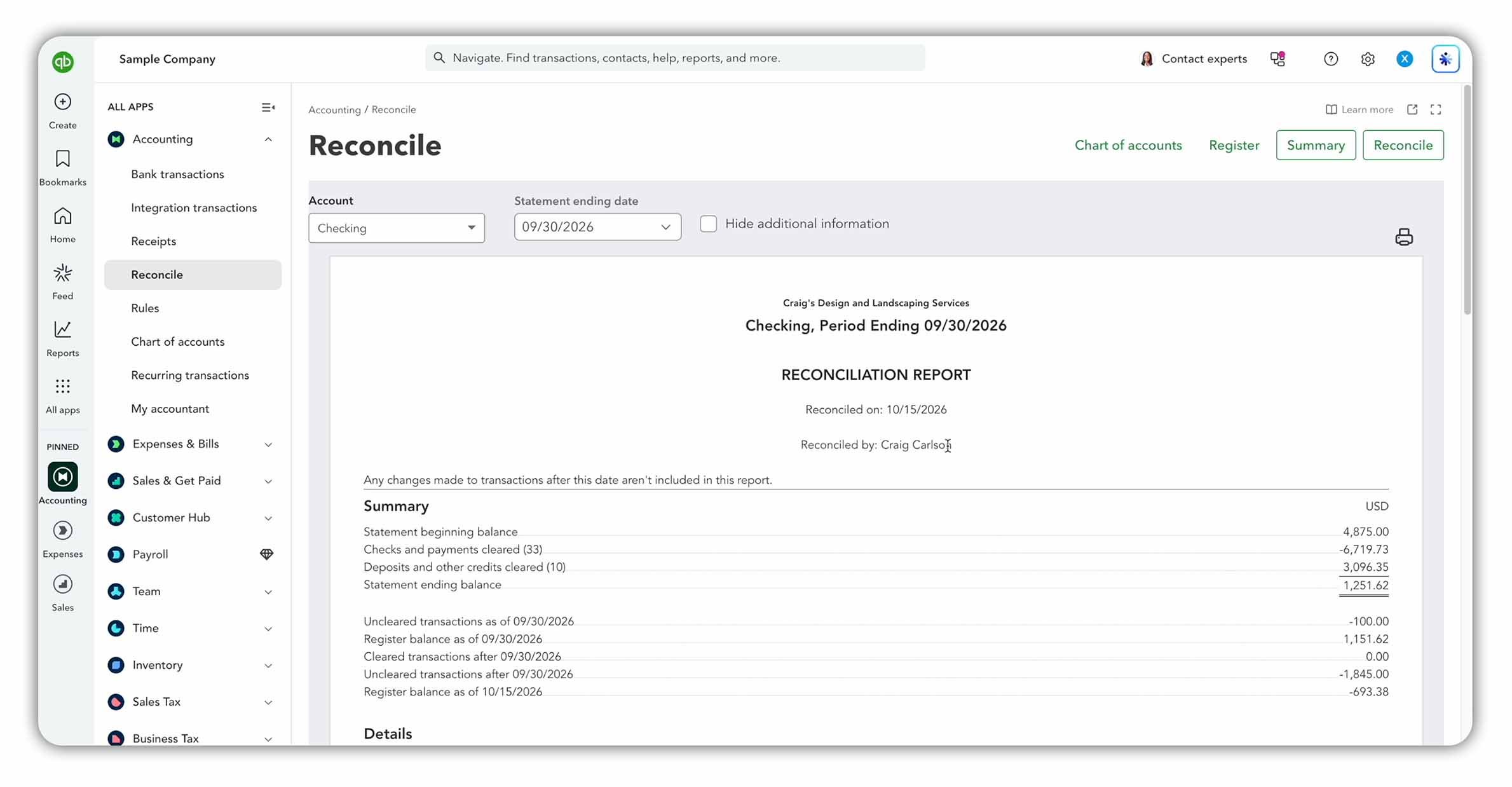
The QuickBooks Online Reconciliation Report summarizes cleared transactions and outstanding items, including a $100 uncleared check.
How to Find Previous Reconciliation Reports
You can also access reports from earlier reconciliations.
To do this:
Go to Accounting > Reconcile.
Click History by Account.
Select the bank account you want to review.
Find the relevant reconciliation period.
Open the corresponding Reconciliation Report.
You can then review, print or export the report for your records.
What Happens Next Month?
When you reconcile your bank account again, QuickBooks uses the previous reconciliation as the starting point.
Any outstanding transactions remain in your accounting records until they're cleared.
For example, if Books by Bessie deposits the $100 check in October, you can mark it as cleared when reconciling your October bank statement.
This helps maintain an accurate and continuous record of your bank activity from one accounting period to the next.
Final Thoughts
Reconciling your bank account is an essential part of keeping your business's financial records accurate and up to date.
With QuickBooks Online, you can import bank transactions, match or categorize them, identify reconciliation differences and confirm that your records agree with your bank statement.
Remember, matching or categorizing transactions isn't the same as reconciling your bank account. Both are important steps in maintaining accurate financial records.
If you'd like to learn more about bookkeeping in QuickBooks Online, check out my complete guide to bookkeeping in QuickBooks Online, where I'll show you how to set up your company, manage transactions, record invoices and expenses, and generate financial reports.
Ready to try QuickBooks Online?
Compare the latest plans and introductory offers here:
About the Author
James Hearle is a qualified accountant and the creator of Accounting Stuff, an educational YouTube Channel with over one million subscribers. Drawing on his professional accounting experience, he creates practical videos, guides and learning resources that help students, bookkeepers and business owners understand accounting and apply it with confidence.