
How to Accept Customer Payments in QuickBooks Online
Last updated: November 2026
Getting paid is an essential part of running a business. But whether your customers pay by cash, check, credit card or bank transfer, it's important to record those payments correctly in your accounting records.
QuickBooks Online makes this easier by helping you track customer invoices, record payments and manage bank deposits.
In this step-by-step guide, you'll learn how to accept and record customer payments in QuickBooks Online, from applying payments to outstanding invoices to accepting online payments with QuickBooks Payments and matching transactions in your bank feed.
Whether you're a small-business owner, beginner bookkeeper or accounting professional, I'll show you how the process works and how to avoid common mistakes.
QuickBooks menus and features may vary depending on your country, subscription and software version. Payment processing features are subject to availability and eligibility.
Disclosure: This post was created in partnership with Intuit and contains affiliate links. If you sign up through one of these links, I may earn a commission at no additional cost to you.
Watch How to Accept Customer Payments in QuickBooks Online
Prefer to learn by watching?
In this step-by-step video tutorial, I'll show you how to record customer payments, create bank deposits, accept payments with QuickBooks Payments and match transactions in your bank feed.
Step-by-step video tutorial showing how to accept and record customer payments in QuickBooks Online.
How to Accept Customer Payments in QuickBooks Online: 5 Steps
Here's the five-step process we'll follow to accept, record and manage customer payments in QuickBooks Online:
Understand customer payments: Learn how invoices, payments and Accounts Receivable work together.
Record customer payments: Apply payments to outstanding customer invoices.
Record bank deposits: Move payments from Undeposited Funds into your bank account in QuickBooks.
Accept payments with QuickBooks Payments: Explore online invoice payments, Payment Links, Recurring Payments and in-person options.
Match customer payments: Match downloaded bank transactions to payments already recorded in QuickBooks.
We'll use practical examples throughout to show you how each step works.
Get 50% Off QuickBooks Online for 3 Months
Ready to start managing customer invoices and payments in QuickBooks Online?
Get 50% off your first 3 months of QuickBooks Online with this special offer!
Not sure which plan is right for you? Check out my QuickBooks Online plan comparison to find the best fit for your business.
Offer subject to eligibility and current terms. Affiliate link.
Part 1: How Do Customer Payments Work?
Before we start recording customer payments in QuickBooks Online, let's look at how the process works.
When a business sells goods or services on credit, it sends the customer an invoice showing how much they owe and when payment is due.
For example, imagine you provide a service worth $500 and send your customer an invoice.
Under Accrual Accounting, you record $500 in Revenue and $500 in Accounts Receivable when the revenue is earned.
Accounts Receivable represents money owed to the business by its customers.
When the customer pays the invoice, the business receives $500 in cash and reduces Accounts Receivable by $500.
Receiving payment doesn't create another $500 in Revenue. That revenue was already recorded when it was earned.
The Customer Payment Process
The process typically follows four stages:
Create an invoice: Record the sale and the amount owed by the customer.
Receive the payment: The customer pays the outstanding invoice.
Record the payment: Update the customer's balance and record where the money is being held or deposited.
Match the bank transaction: Match the payment or deposit to the corresponding transaction in your bank feed.
If a customer pays immediately instead of receiving an invoice, you can often record the sale and payment together using a Sales Receipt.
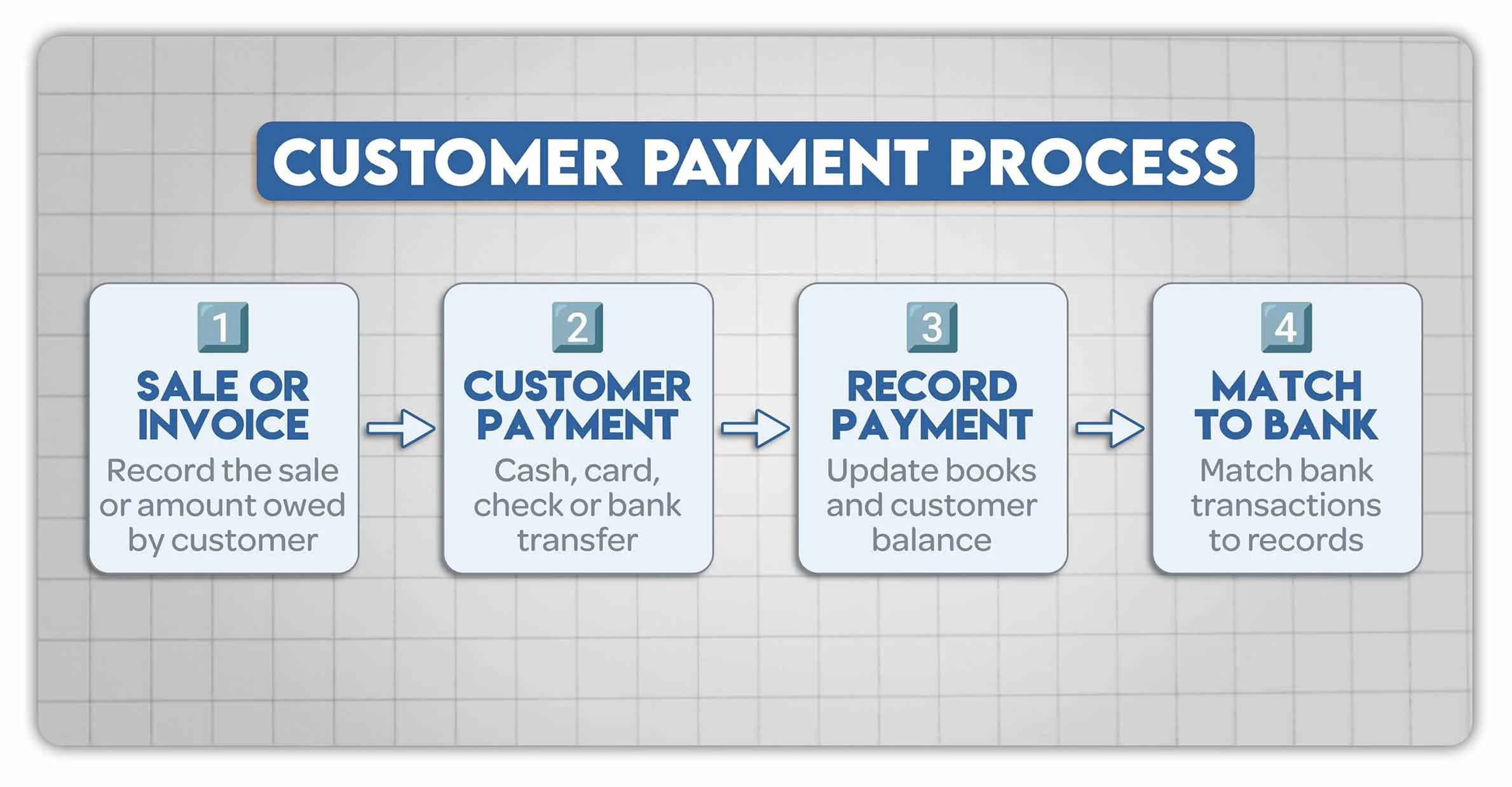
The four stages of the customer payment process, from recording a sale to matching the payment with your bank transactions.
Part 2: How to Record Customer Payments in QuickBooks Online
Let's look at how to record a customer payment against an outstanding invoice.
In this example, we've received a $75 check from Kookies by Kathy for Invoice 1016, but haven't deposited it into our bank account yet.
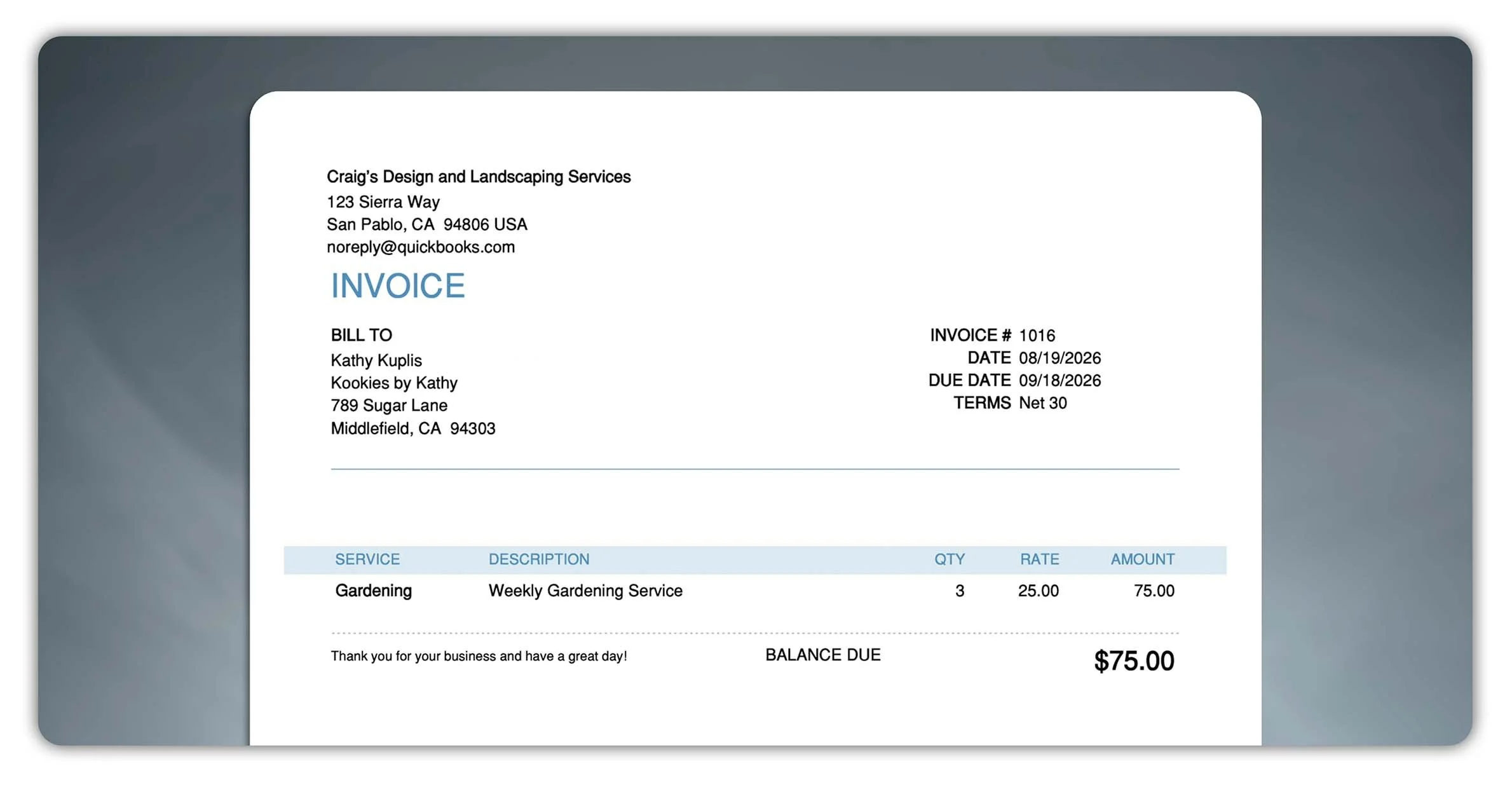
Invoice 1016 for Kookies by Kathy, showing an outstanding balance of $75 before recording the customer payment in QuickBooks Online.
Find the Outstanding Invoice
Here, you'll find invoices you've created for your customers, including those that are still awaiting payment.
If you're new to invoicing, check out my step-by-step guide to creating and sending invoices in QuickBooks Online.
Locate Invoice 1016 for Kookies by Kathy and select Receive payment.
Enter the Customer Payment Details
QuickBooks will open the Receive Payment screen.
Select Record payment, then enter the following details:
Customer: Kookies by Kathy
Payment date: November 3, 2026
Payment method: Check
Reference no.: 1045
Amount received: $75
Deposit to: Undeposited Funds
Under Outstanding Transactions, locate Invoice 1016 and select the checkbox beside it.
This tells QuickBooks which invoice the customer is paying. Since they've paid the full $75, there'll be nothing left owing.
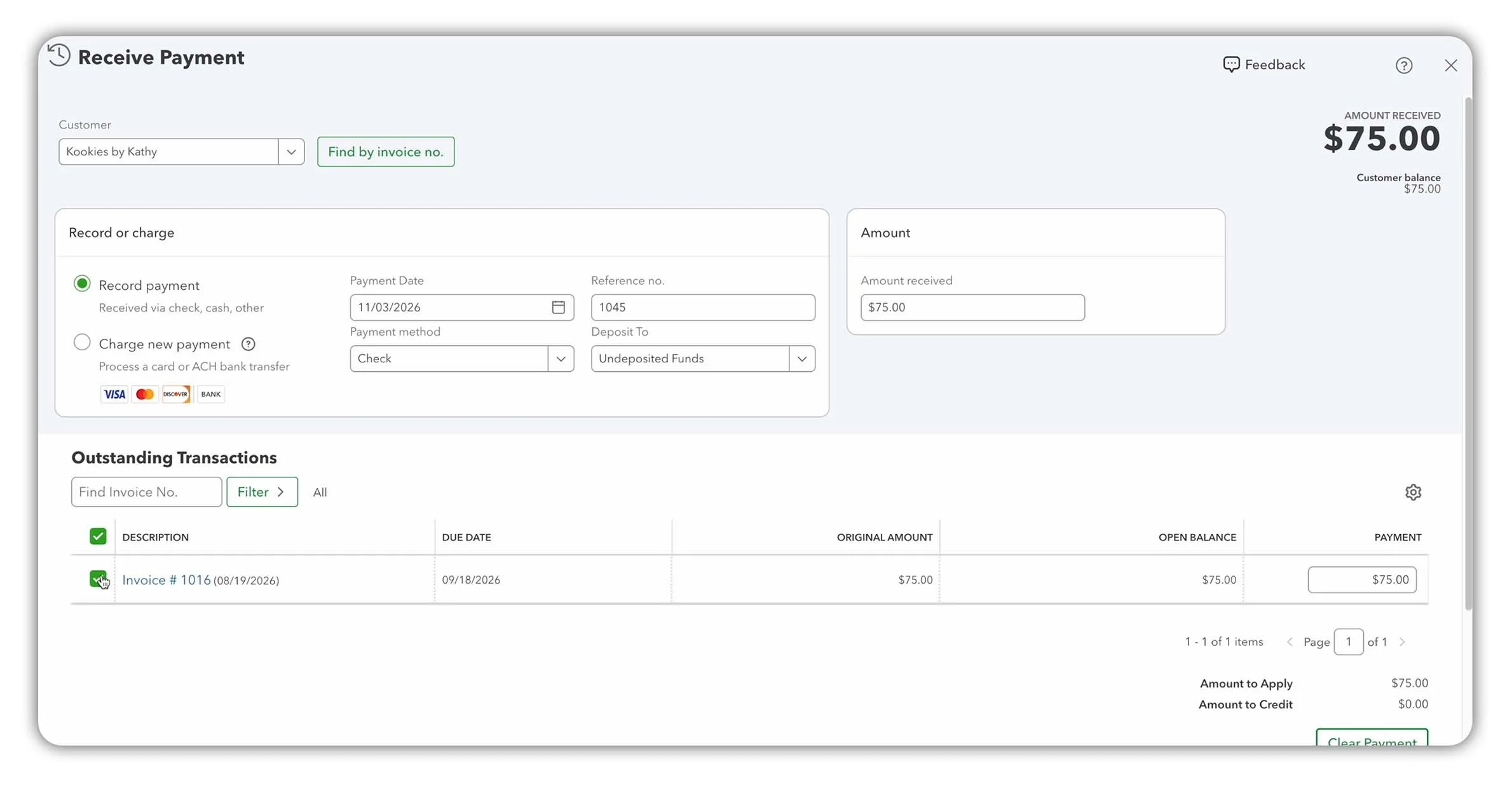
Recording a $75 check payment from Kookies by Kathy against Invoice 1016 using the Receive Payment screen in QuickBooks Online.
Once everything looks correct, select Record and close.
QuickBooks records the payment, reduces the customer's outstanding balance and marks Invoice 1016 as Paid.
Quick Tip: If a customer makes a partial payment, you can record the amount received and leave the remaining invoice balance outstanding. You can also apply a single payment to multiple invoices from the same customer.
What Is Undeposited Funds?
Undeposited Funds is a temporary account in QuickBooks used to hold customer payments that haven't yet been recorded as bank deposits.
Think of it as a virtual holding area for money you've received but haven't deposited into your bank account yet.
For example, if you receive three checks from different customers and deposit them together at the bank, you can record those payments in Undeposited Funds before combining them into one bank deposit.
This helps you match the deposit recorded in QuickBooks to the total amount appearing on your bank statement.
If a payment goes directly into your bank account and doesn't need to be grouped with other payments, you may be able to select the bank account instead.
In our example, the $75 check from Kookies by Kathy will remain in Undeposited Funds until we record the bank deposit in the next step.
Part 3: How to Record Bank Deposits in QuickBooks Online
Now that we've received our customer's $75 check, the next step is to record the bank deposit in QuickBooks Online.
This moves the payment from Undeposited Funds into our Checking account in our accounting records.
Create a Bank Deposit
First, head to + Create, then select Bank deposit.
At the top of the Bank Deposit screen, choose the bank account where you've deposited the money. In our example, we'll select Checking.
Next, enter the deposit date and locate the payments waiting in Undeposited Funds.
Find the $75 payment from Kookies by Kathy and select the checkbox beside it.
QuickBooks automatically includes the payment in the deposit, bringing the total to $75.
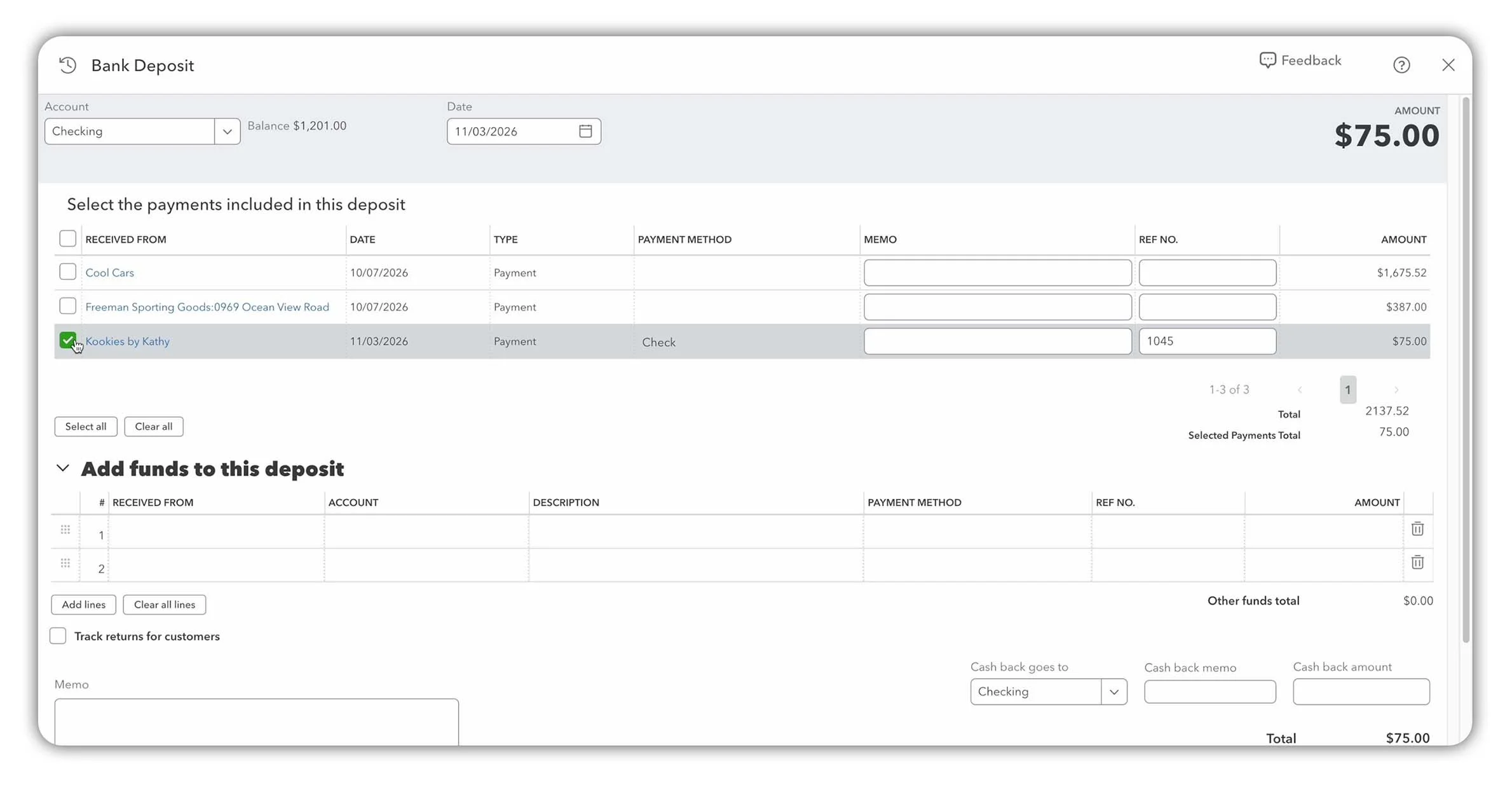
Creating a bank deposit in QuickBooks Online by selecting the $75 customer payment from Kookies by Kathy in Undeposited Funds.
You can also add a memo to help identify the deposit later, but this is optional.
Once everything looks correct, select Save and close.
QuickBooks moves the $75 from Undeposited Funds into Checking, so our books now reflect where the money has been deposited.
Quick Tip: Recording a bank deposit in QuickBooks updates your accounting records. It doesn't physically transfer money into your bank account.
Combining Multiple Customer Payments
One of the main benefits of using Undeposited Funds is that you can combine several customer payments into a single bank deposit.
For example, imagine you've received:
$75 from Kookies by Kathy
$125 from Customer B
$300 from Customer C
If you deposit all three payments together at the bank, you can select them all in QuickBooks and combine them into a single $500 bank deposit.
This makes it easier to match the $500 deposit recorded in QuickBooks to the corresponding transaction in your bank feed.
Before saving a combined deposit, check that the total agrees with the amount actually deposited at the bank.
For additional guidance, see Intuit's official guide to recording bank deposits in QuickBooks Online.
Quick Tip: The Add funds to this deposit section is for additional amounts that haven't already been included in the selected payments. Don't use it to enter a customer payment you've already recorded through Receive Payment, as this could create a duplicate.
Part 4: How to Accept Payments with QuickBooks Payments
So far, we've looked at how to manually record customer payments and bank deposits in QuickBooks Online.
But what if you could automate much of this process?
That's where QuickBooks Payments comes in.
QuickBooks Payments is an integrated payment processing service that allows eligible businesses to accept credit card, debit card and ACH bank payments directly through QuickBooks Online.
When customers pay through QuickBooks Payments, their payments can be recorded automatically and applied to outstanding invoices, helping you save time and reduce manual bookkeeping.
Accept Online Invoice Payments
One of the main benefits of QuickBooks Payments is that customers can pay their invoices online using credit cards, debit cards or ACH bank transfers.
If you're new to invoicing, check out my step-by-step guide to creating and sending invoices in QuickBooks Online.
To enable online payments, open an invoice in QuickBooks Online and select Payment options from the Manage panel.
Here, you can choose which payment methods to offer your customers, depending on what's available to your business.
Once you've completed the invoice, select Review and send.
Your customer will receive an email with a View and pay button, taking them to a secure payment page where they can review the invoice and submit their payment.
When a customer pays through QuickBooks Payments, QuickBooks can automatically record the payment, apply it to the invoice and update its status to Paid.
This helps reduce manual data entry and keeps your customer balances up to date.
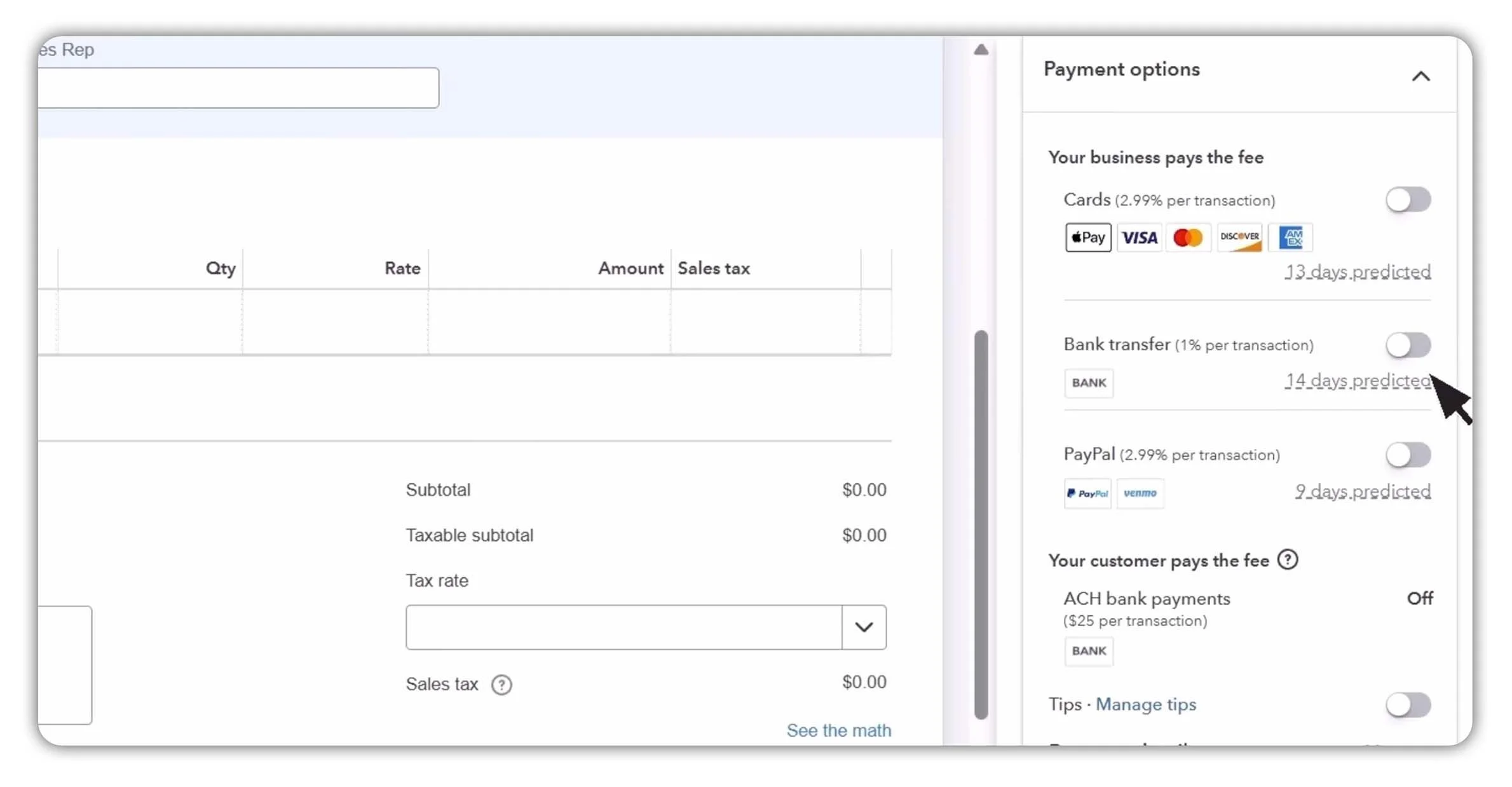
Accepting online invoice payments in QuickBooks Online using credit cards, debit cards or ACH bank transfers through QuickBooks Payments.
Send Payment Links
QuickBooks Payments also lets you collect customer payments using Payment Links, without needing to create an invoice first.
Simply create a payment link and share it with your customer by email, text message or another supported channel.
For example, if you're collecting a one-off payment for a service, you can send your customer a link that takes them directly to an online payment page.
Once they've paid, you can track the transaction in QuickBooks Online.
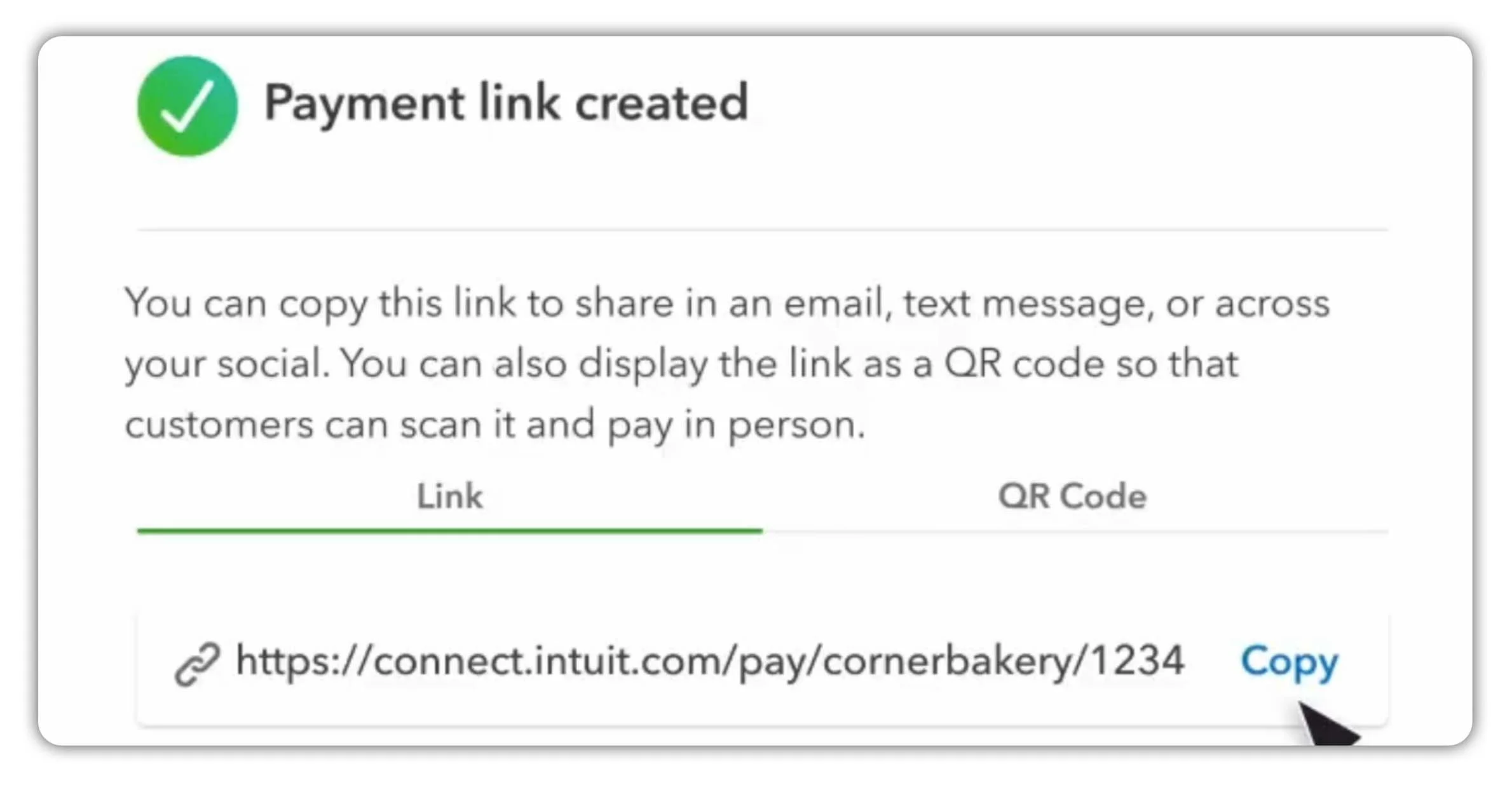
Creating a Payment Link in QuickBooks Payments to collect customer payments online without sending an invoice.
Set Up Recurring Payments
If you regularly collect payments from the same customers, QuickBooks Recurring Payments can help automate the process.
This is particularly useful for ongoing services, subscriptions or other regular payments.
For example, rather than manually requesting payment every month, eligible businesses can set up recurring payments to automatically collect money from customers on a scheduled basis.
Offer Buy Now, Pay Later with Affirm
Eligible US businesses can also offer Affirm Buy Now, Pay Later through QuickBooks Payments, where available.
This allows approved customers to spread their payments over time, while the business generally receives payment upfront, less any applicable fees.
Affirm handles the financing and takes on the customer's repayment risk, subject to the program's terms.
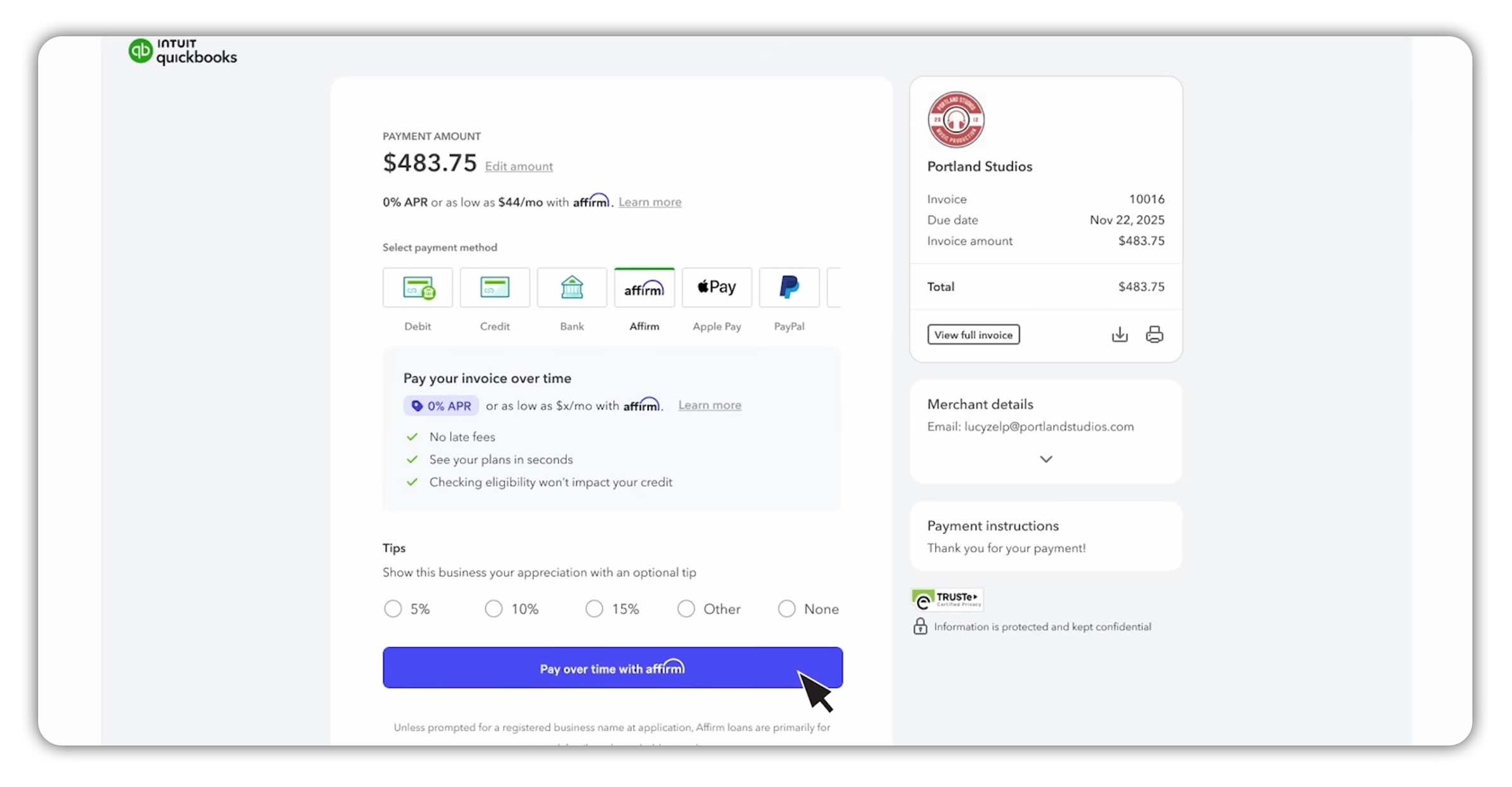
QuickBooks Payments checkout showing Affirm Buy Now, Pay Later as an option for eligible customers who want to spread their invoice payments over time.
Availability and customer approval are subject to eligibility. See Affirm's lending disclosures for details.
Accept In-Person Payments
QuickBooks Payments also allows eligible businesses to accept payments in person using:
The QuickBooks GoPayment mobile app
Compatible card readers
Tap to Pay on iPhone
With Tap to Pay on iPhone, you can accept contactless credit card, debit card and digital wallet payments directly on a compatible iPhone, without needing a separate card reader.
This is particularly useful for businesses that collect payments on the go, such as tradespeople, mobile service providers and other businesses visiting customers.
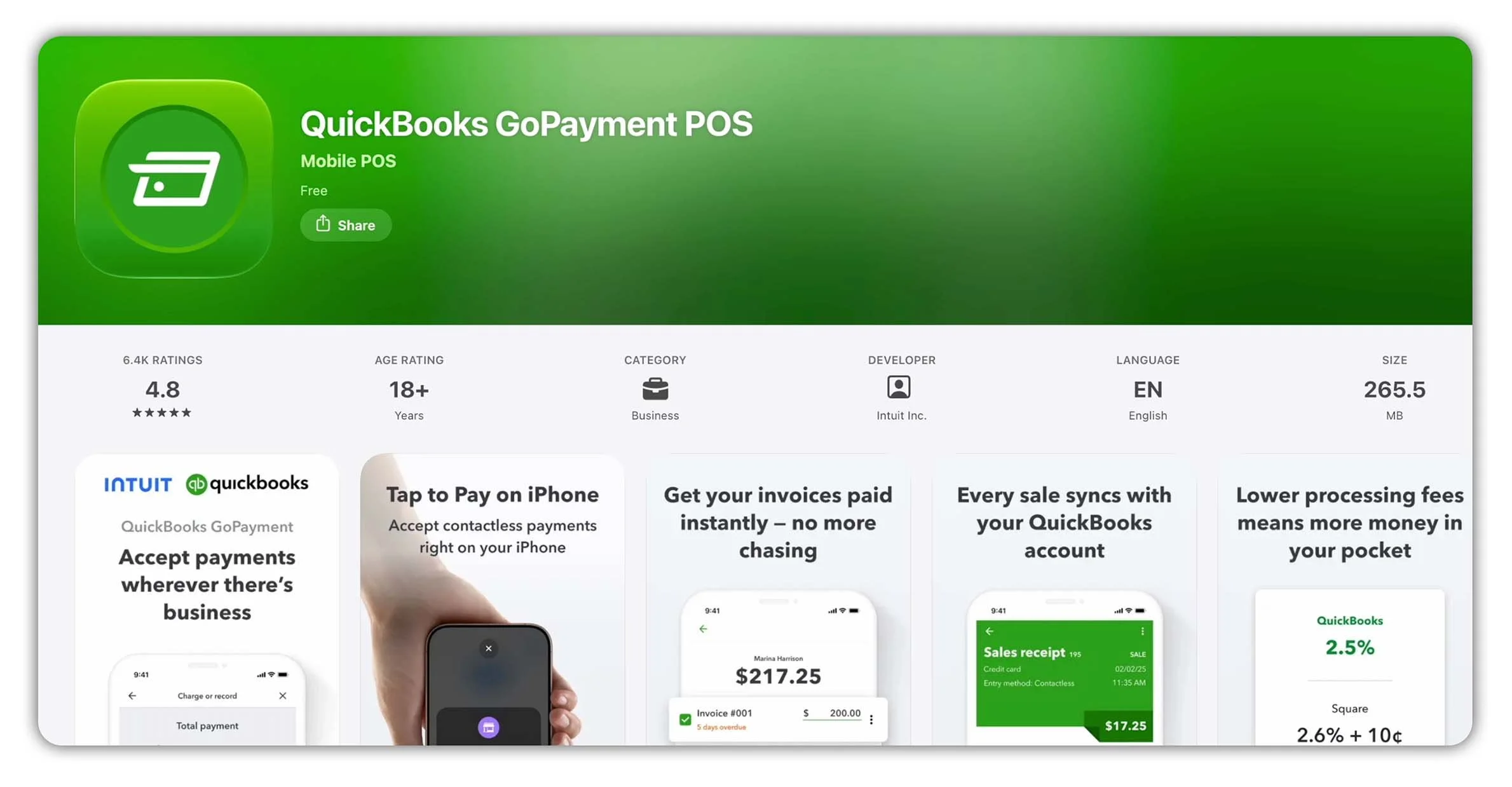
QuickBooks GoPayment supports in-person payments using compatible card readers and Tap to Pay on iPhone.
How Much Does QuickBooks Payments Cost?
QuickBooks Payments charges processing fees when customers pay using supported payment methods.
These fees vary depending on how the payment is made. For example, online card payments, ACH bank transfers and in-person transactions may have different rates.
The comparison below shows how QuickBooks Payments fees compare with Square and Stripe for selected payment methods.
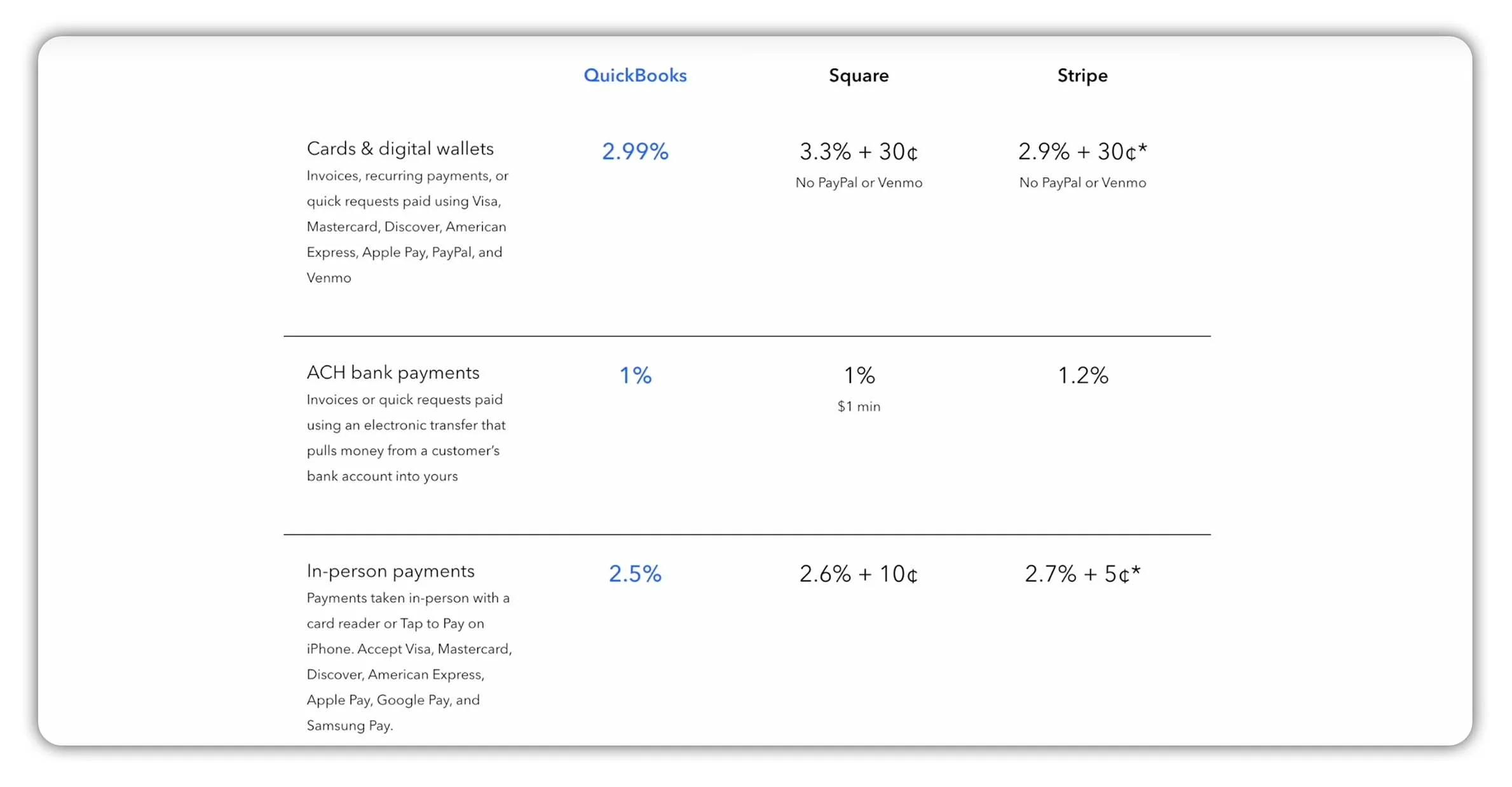
Comparison of published QuickBooks Payments, Square and Stripe processing fees for selected payment methods. Rates vary by provider, plan and transaction type, and are subject to change.
For the latest rates and eligibility requirements, check the official QuickBooks Payments pricing page before getting started.
Step 5: How to Match Customer Payments to Bank Transactions
Once you've recorded your customer payments and bank deposits, the next step is to match them to the transactions appearing in your bank feed.
QuickBooks Online can automatically import transactions from connected bank accounts, making this process easier.
Find Your Bank Transactions
First, head to Accounting, then Bank transactions.
Select your Checking account and open the Pending tab to view transactions imported from your bank.
Here, QuickBooks gives you two main options:
Categorize: Create a new transaction in your accounting records.
Match: Link a downloaded bank transaction to one you've already recorded in QuickBooks.
This distinction is important because recording the same customer payment twice can lead to duplicate entries and incorrect bank balances.
For more guidance, see Intuit's official guide to matching bank transactions in QuickBooks Online.
Match an Existing Customer Payment
For example, imagine your bank feed includes a payment of $103.55 from Travis Waldron.
We've already recorded this payment in QuickBooks, so there's no need to create another transaction.
Notice that QuickBooks has suggested a match to Payment 2064, based on the existing transaction details.
Select the bank transaction and open Match to review the suggestion.
Check the customer, amount and date to confirm that the transactions agree.
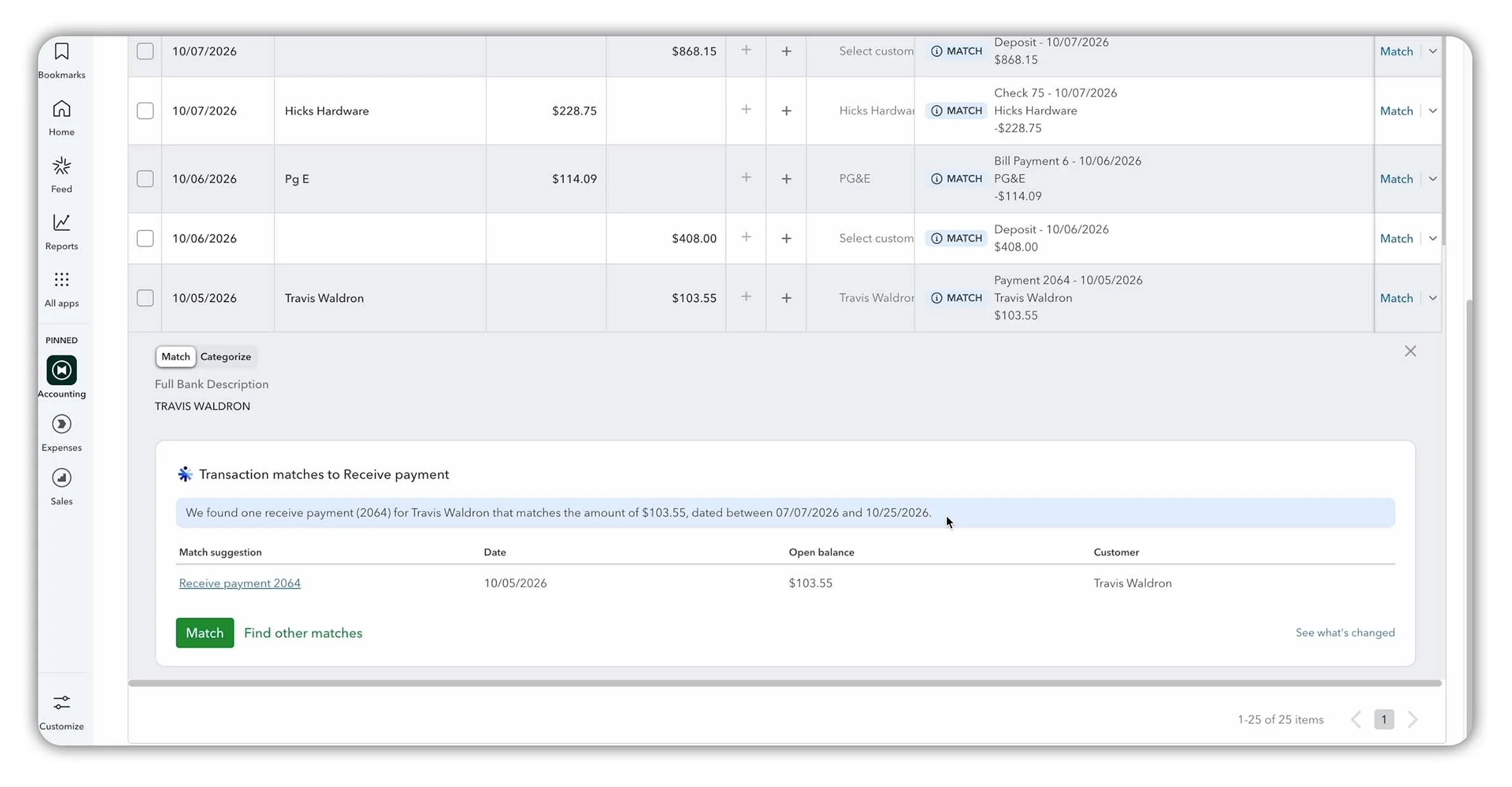
Matching a $103.55 bank transaction from Travis Waldron to an existing customer payment in QuickBooks Online.
Once everything looks correct, select Match.
QuickBooks links the downloaded bank transaction to the payment already recorded in your books, helping you avoid duplicate entries.
What About QuickBooks Payments Processing Fees?
If you use QuickBooks Payments, the amount deposited into your bank account may differ from the amount paid by the customer because of processing fees.
For example, imagine a customer makes a $500 payment and a hypothetical $15 processing fee is deducted.
The resulting bank deposit would be $485.
QuickBooks Payments can automatically record the related payments, deposits and processing fees, depending on how the transactions are processed.
You can review your transactions and processing fees under QuickBooks payouts to understand how the deposited amounts were calculated.
Before manually recording any processing fees, check whether QuickBooks has already accounted for them to avoid creating duplicates.
Quick Tip: Matching bank transactions isn't the same as completing a bank reconciliation. You should still reconcile your bank account regularly to confirm that your QuickBooks records agree with your bank statement.
Frequently Asked Questions
How Do I Mark an Invoice as Paid in QuickBooks Online?
Open the outstanding invoice and select Receive payment. Enter the payment details, apply the payment to the correct invoice and select Record and close.
QuickBooks will reduce the outstanding balance and mark the invoice as Paid once it's fully paid.
If your customer pays through QuickBooks Payments, the payment can be recorded automatically.
What Is the Difference Between Receive Payment and Bank Deposit?
Receive Payment records money received from a customer against an outstanding invoice, reducing Accounts Receivable.
Bank Deposit records money being deposited into your bank account, including payments previously held in Undeposited Funds.
If a payment has already been recorded through Receive Payment, you shouldn't record it again as new income.
Why Is a Customer Payment Showing in Undeposited Funds?
A payment appears in Undeposited Funds when it's been received but hasn't yet been included in a recorded bank deposit.
Once you've deposited the money at the bank, you can create a Bank Deposit in QuickBooks to move the payment from Undeposited Funds into the appropriate bank account.
Does Receiving a Customer Payment Increase Revenue?
Not if the revenue has already been recorded.
Under Accrual Accounting, revenue is generally recognised when it's earned, rather than when the customer pays.
If you've already recorded the revenue through an invoice, receiving payment increases Cash and reduces Accounts Receivable without recording additional revenue.
Should I Match or Categorize Customer Payments?
If a customer payment or bank deposit has already been recorded in QuickBooks, you should generally Match it to the downloaded bank transaction.
If the payment hasn't been recorded yet, you may need to record it using Receive Payment or another appropriate transaction before matching it.
Avoid automatically categorizing customer deposits as new income, as this could result in duplicate revenue.
Final Thoughts: Managing Customer Payments in QuickBooks Online
Getting paid is only half the process. You also need to record customer payments accurately, track outstanding invoices and make sure your bank transactions match your accounting records.
QuickBooks Online helps you manage these tasks in one place, while QuickBooks Payments can automate payment collection and recording for eligible businesses.
But matching customer payments is only part of keeping your books accurate. It's also important to reconcile your bank accounts regularly to make sure your records agree with your bank statements.
If you'd like to learn how, check out my step-by-step guide to reconciling a bank account in QuickBooks Online.
Learn how to reconcile a bank account in QuickBooks Online, identify and fix differences, and complete your reconciliation.
Thanks for reading!
Ready to Try QuickBooks Online?
Ready to put what you've learned into practice?
Explore QuickBooks Online plans and get 50% off your first 3 months with this introductory offer.
Offer available to eligible US customers. Terms and conditions apply. Affiliate link.
About the Author
James Hearle is a qualified accountant and creator of Accounting Stuff, an educational YouTube channel with over one million subscribers.
Drawing on his professional accounting experience, he creates practical tutorials, guides and study resources to help students, bookkeepers and business owners understand accounting and apply it with confidence.